
Demonstrate Session Management Procedures
Step 1: Deploy Core Network
Option A (Terminal): Click on the Terminal button to open the terminal then from the project root directory, execute the following command:
This command starts all core network components (AMF, SMF, UPF, NRF, etc.) in detached mode
docker compose -f docker-compose.yml up -d
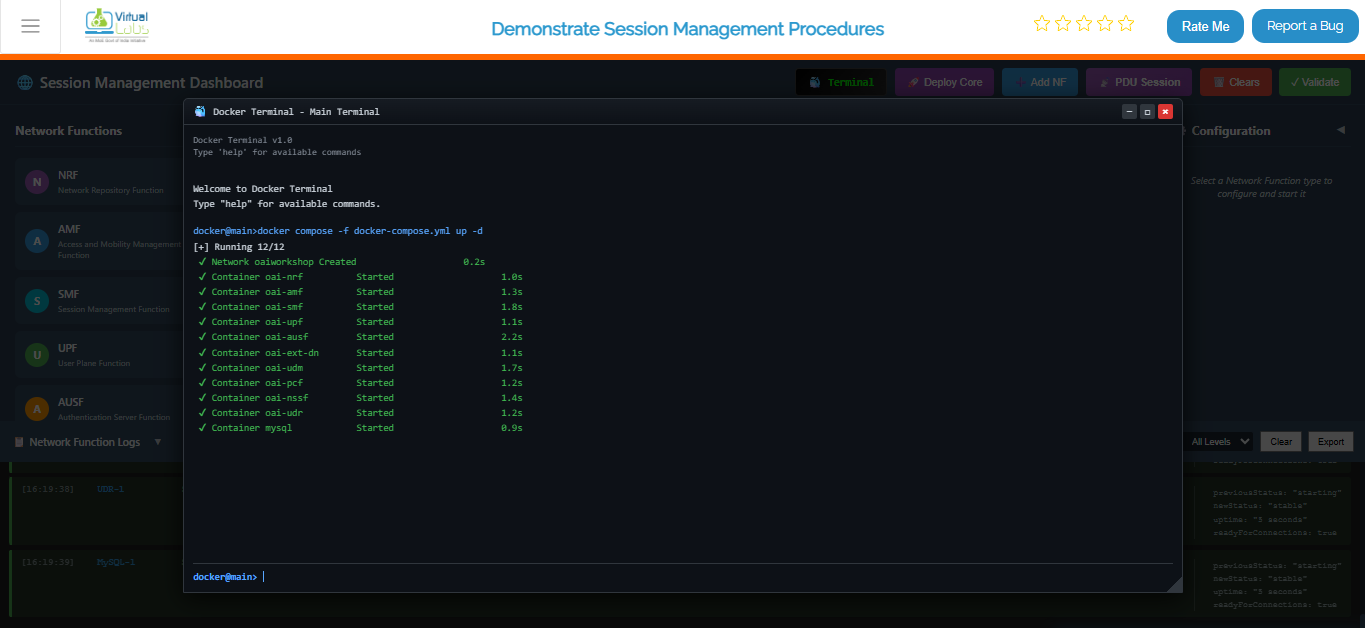
Once the core network is up and running, deploy the gNB services:
docker compose -f docker-compose-gnb.yml up -d
This command initializes the gNB and establishes connectivity with the core network.
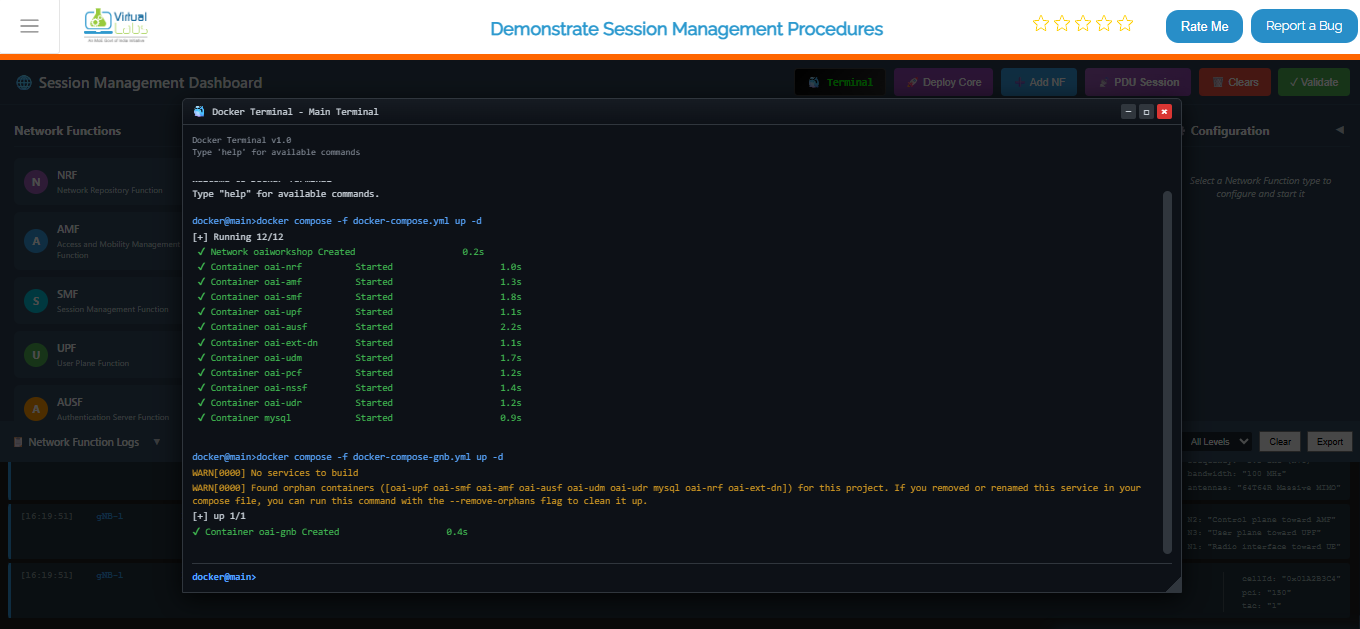
After the gNB deployment is complete, deploy the UE services:
docker compose -f docker-compose-ue.yml up -d
This starts the UE containers and attaches them to the gNB.
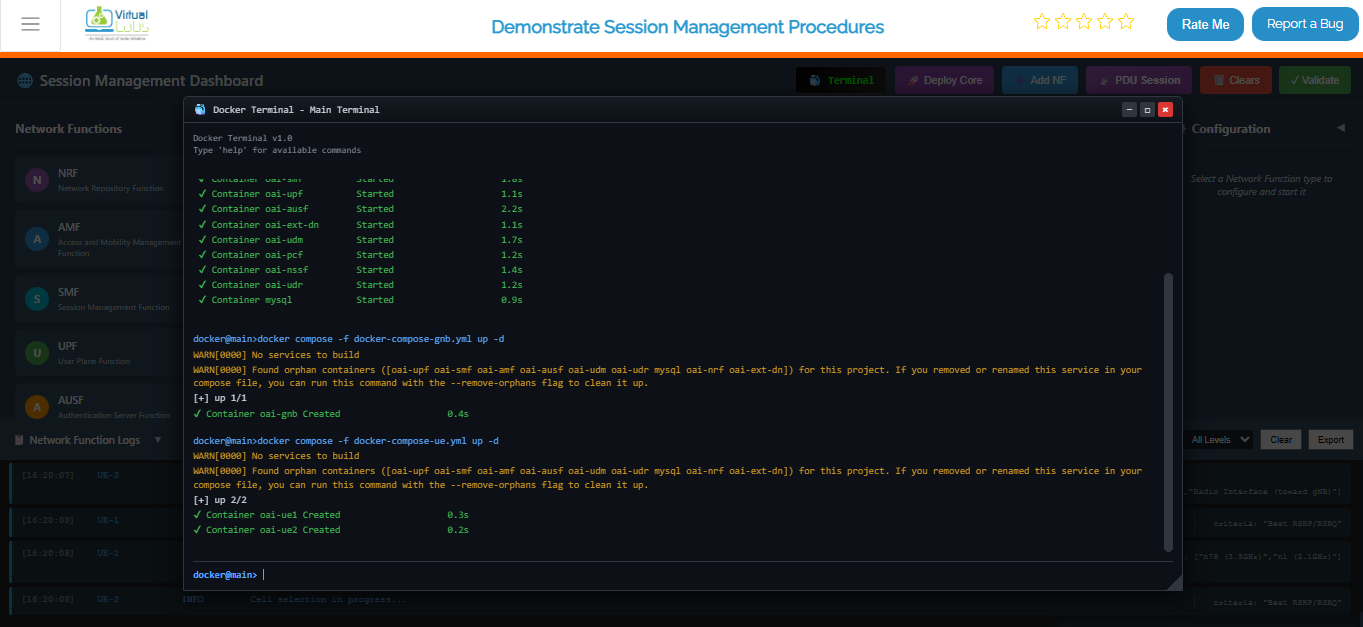
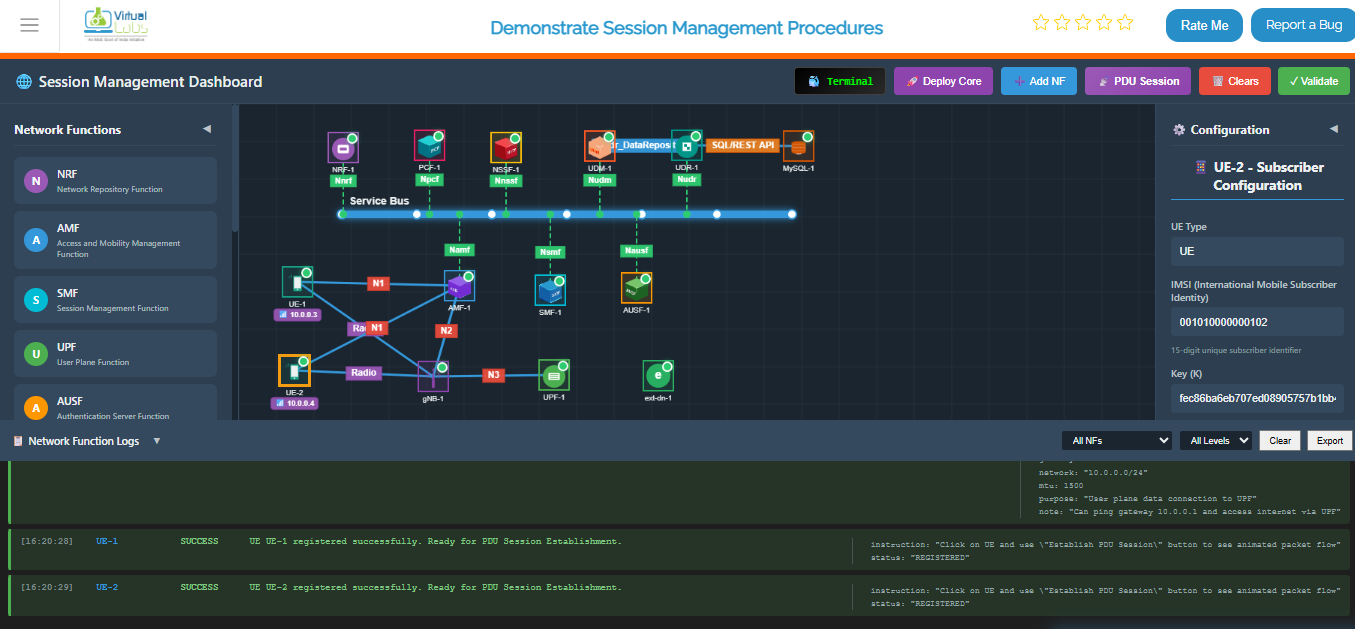
To verify that all containers are running successfully, execute:
docker ps
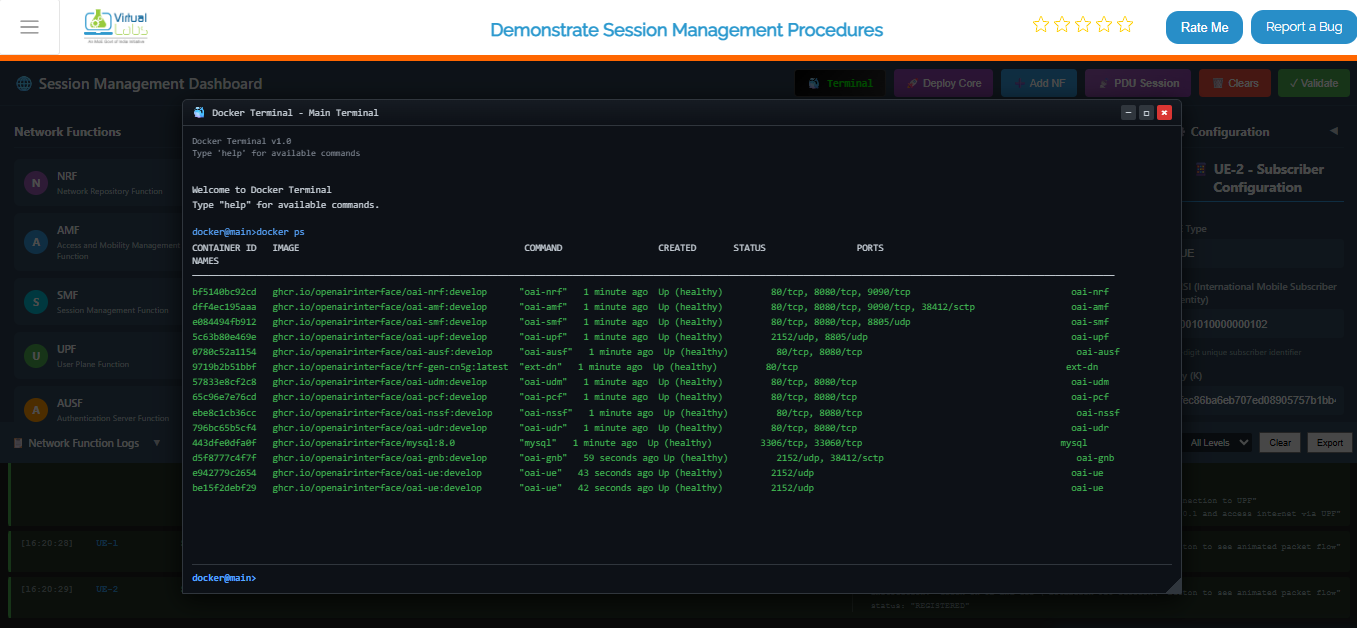
To continuously monitor the status of the core network containers, use:
watch docker compose -f docker-compose.yml ps -a
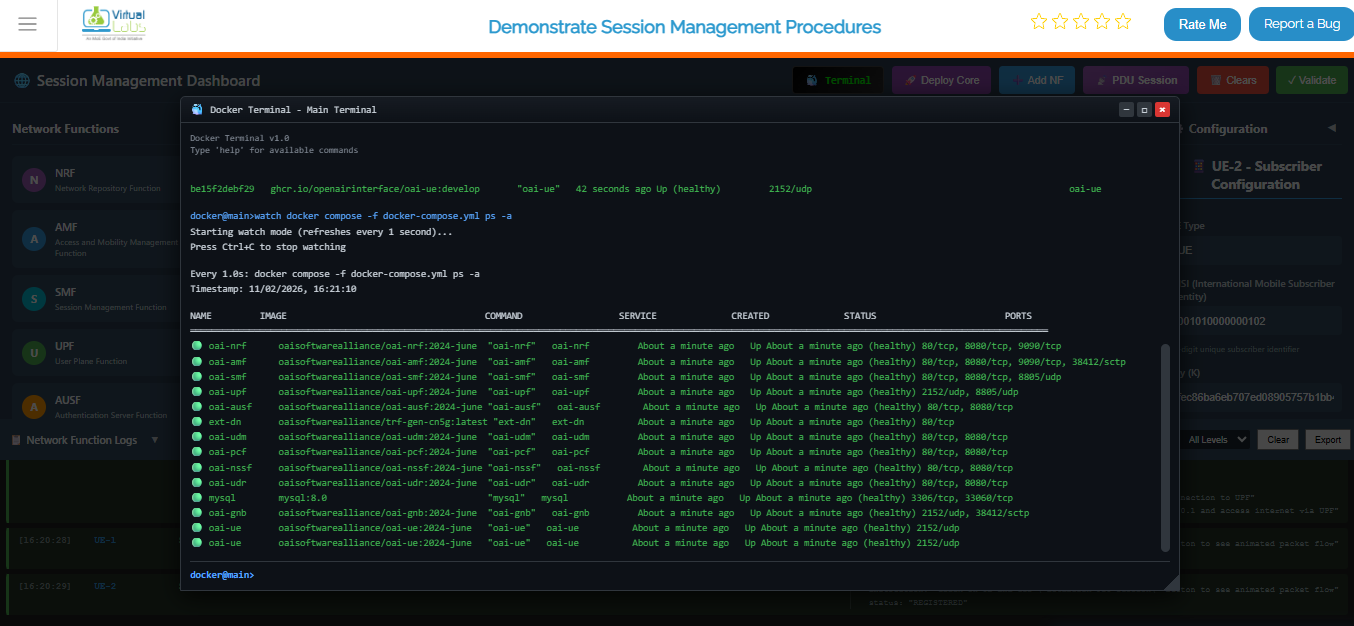
Option B (Automatic): Click the Deploy Core button on the top toolbar. This will automatically clear any existing topology and sequentially deploy the Service Buses, Network Functions (NRF, AMF, SMF, UPF, UDR, PCF, gNB, UE), and establish the necessary connections.
Option C (Manual): Manually add each Network Function from Network function panel then enter configuration detail in the left configuration panel and start NF.
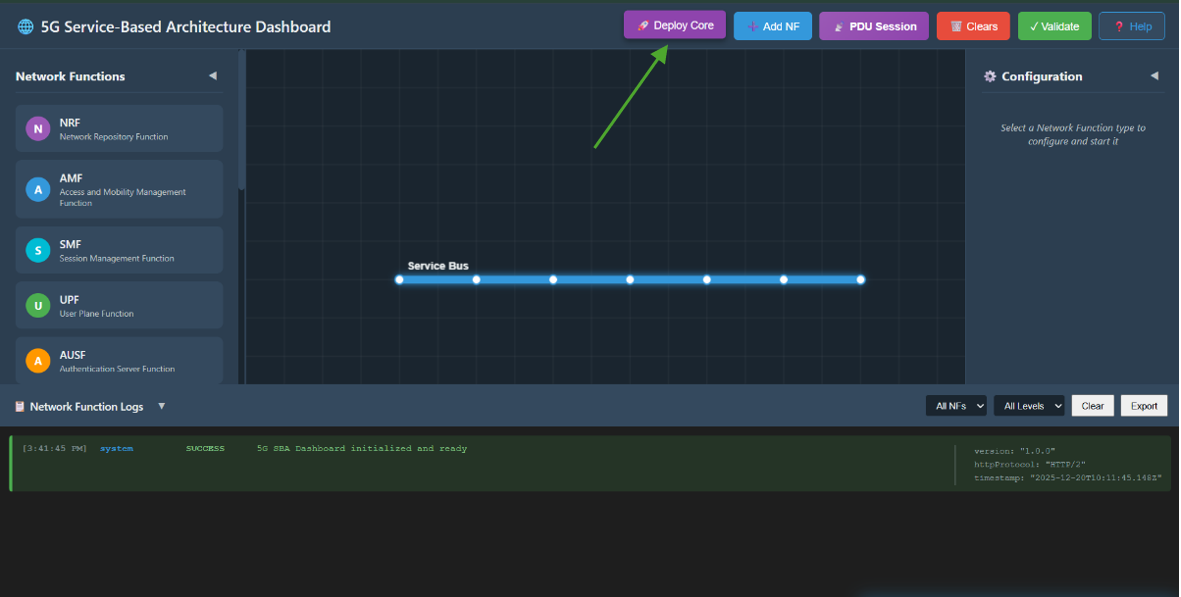
Fig: Core Network Deployment
Step 2: Enable PDU Session Mode
Once the core network is successfully deployed and all NFs show a "Stable" status, click on the PDU Session button in the top toolbar to switch the interface to the Session Management experiment mode.
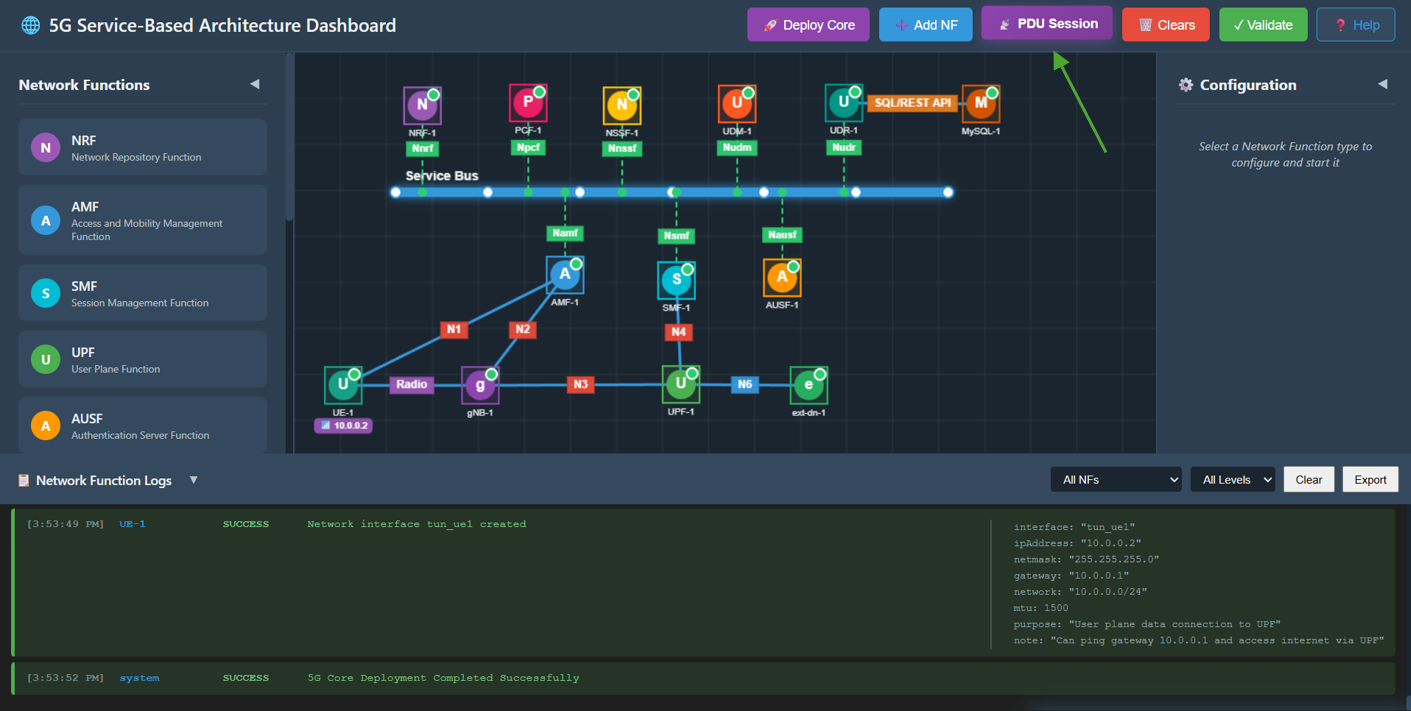
Fig: PDU Session Mode
Step 3: Observe Experiment Panels
You will now see:
- Right Panel (PDU Session Establishment): A step-by-step interactive flow for the PDU session creation process.
- Left Panel (PDU Session Messages): An inspector panel that displays the JSON content of every Request and Response message sent between NFs.
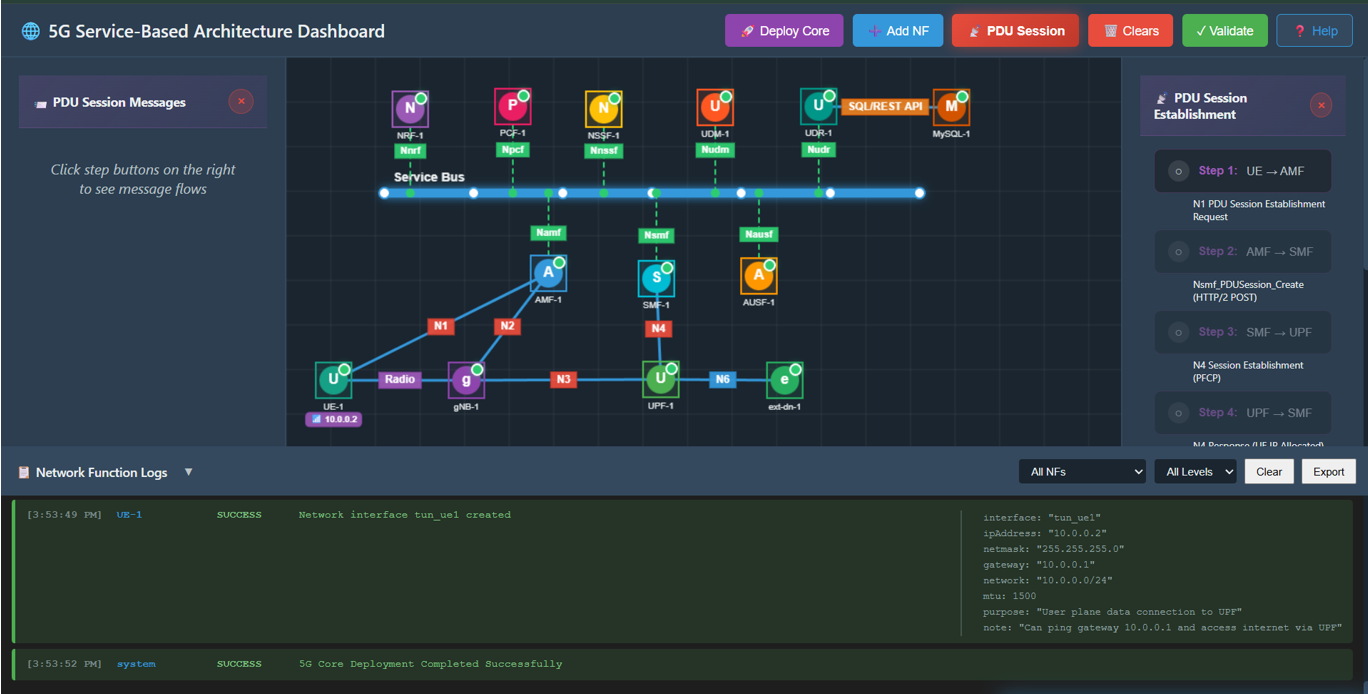
Fig: Experiment Panels
Step 4: UE Requests Session
Click Step 1 in the right panel.
- Action: UE sends a PDU Session Establishment Request to the AMF via N1 interface.
- Observation: A packet travels from UE to AMF. The left panel shows the NAS message details including supi, dnn, and requestType.
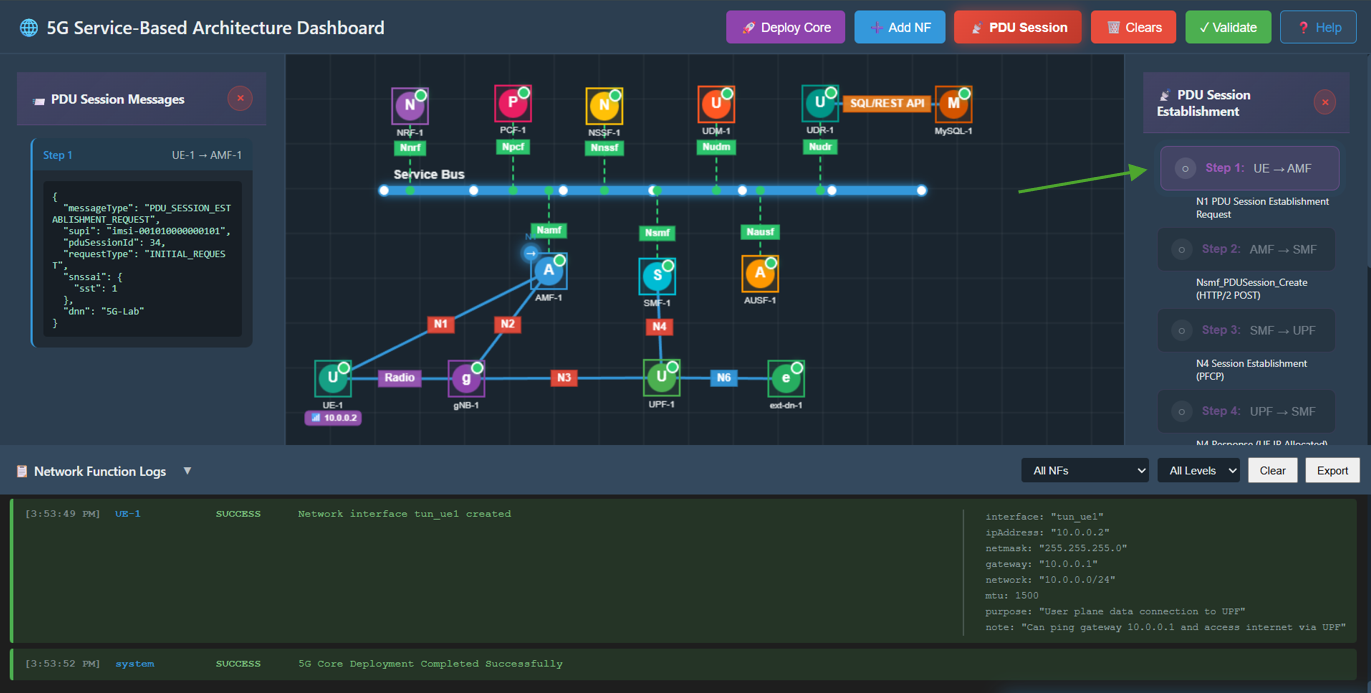
Fig: UE Session Request
Step 5: AMF Selects SMF
Click Step 2 in the right panel.
- Action: AMF forwards the request to the SMF by sending Nsmf_PDUSession_Create.
- Observation: A packet travels from AMF to SMF. The left panel verifies that AMF has selected an SMF.
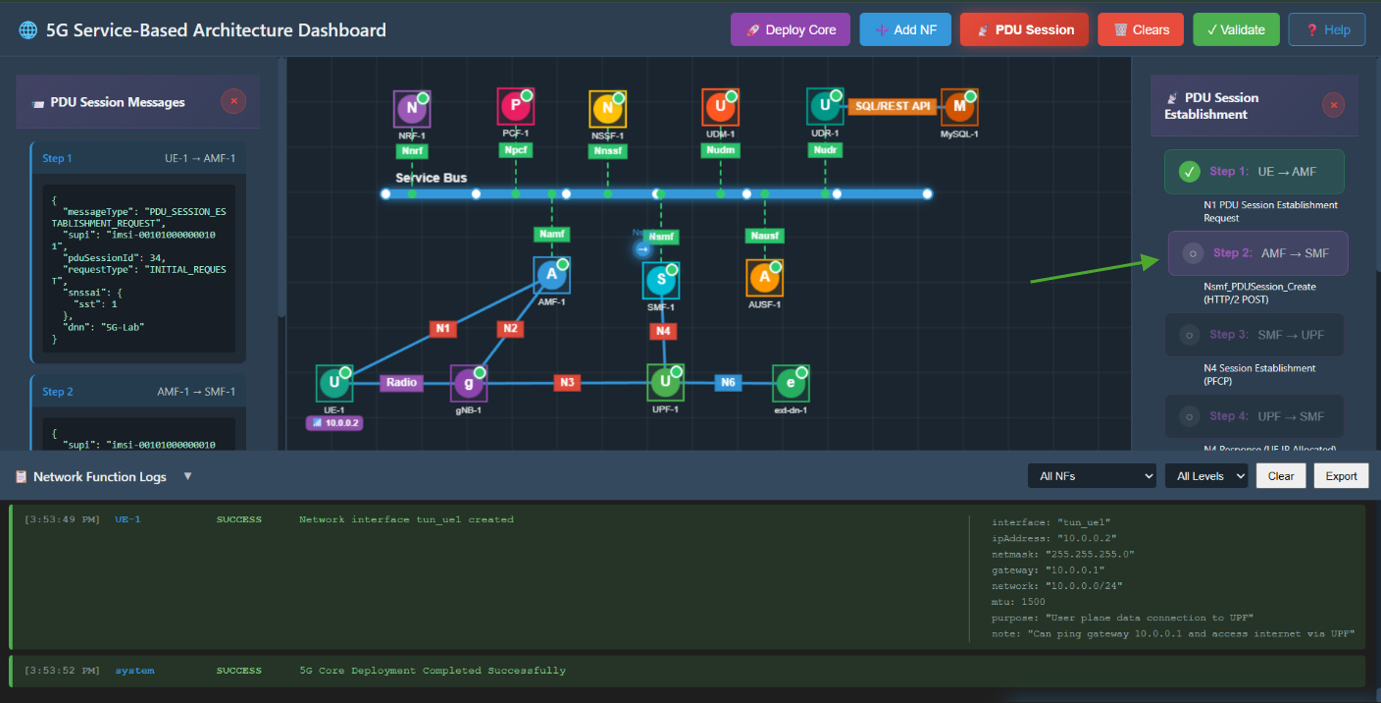
Fig: AMF Selects SMF
Step 6: SMF Configures UPF
Click Step 3 in the right panel.
- Action: SMF instructs the UPF to establish a user plane session via N4 Session Establishment Request.
- Observation: A packet travels from SMF to UPF. This requests resource allocation on the User Plane.
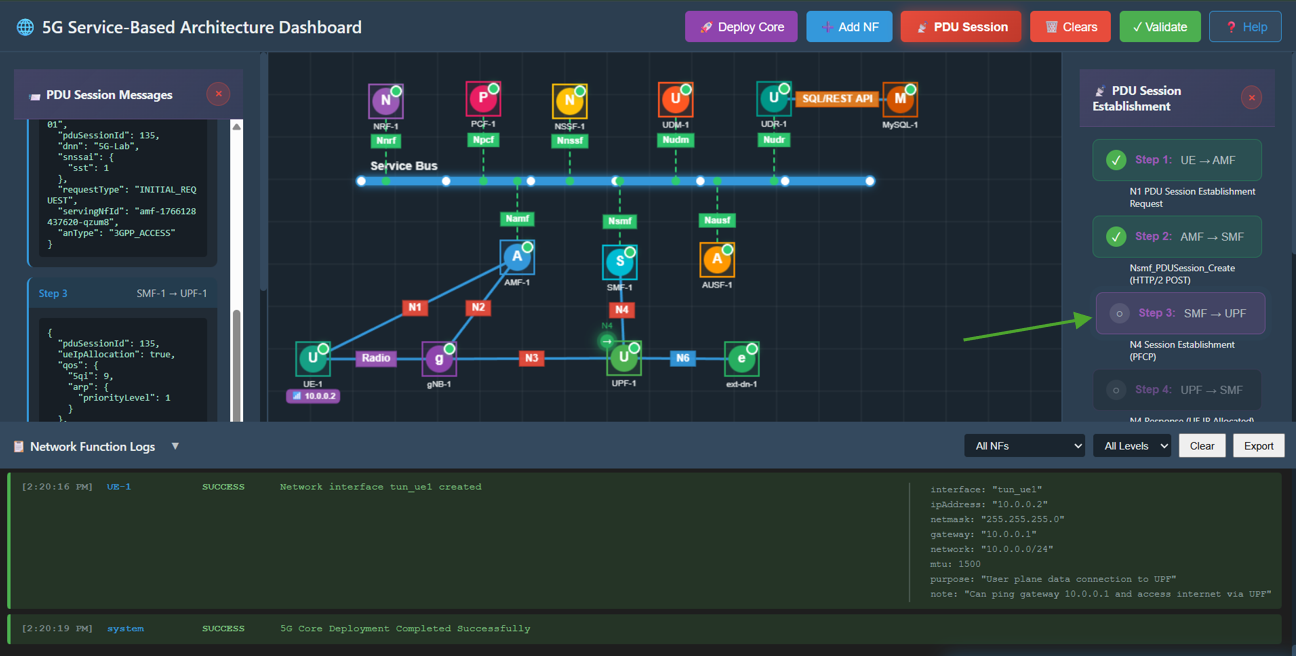
Fig: SMF Configures UPF
Step 7: UPF Allocates IP
Click Step 4 in the right panel.
- Action: UPF processes the request, allocates an IP address for the UE, and sends an N4 Session Establishment Response back to the SMF.
- Observation: A packet travels from UPF to SMF. The response JSON contains the assigned ueIp and tunnelId.
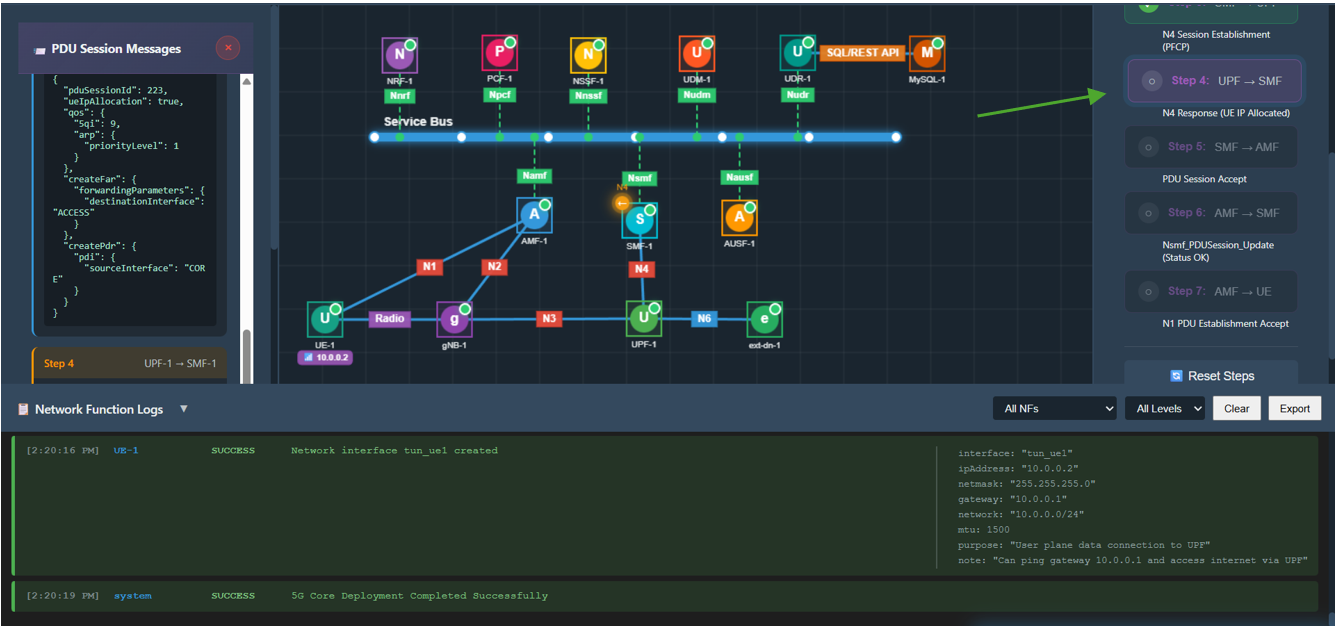
Fig: UPF Allocates IP
Step 8: SMF Accepts Session
Click Step 5 in the right panel.
- Action: SMF sends a Nsmf_PDUSession_Create Response back to the AMF, confirming the session is ready.
- Observation: A packet travels from SMF to AMF. The message includes QoS rules and the allocated IP address.
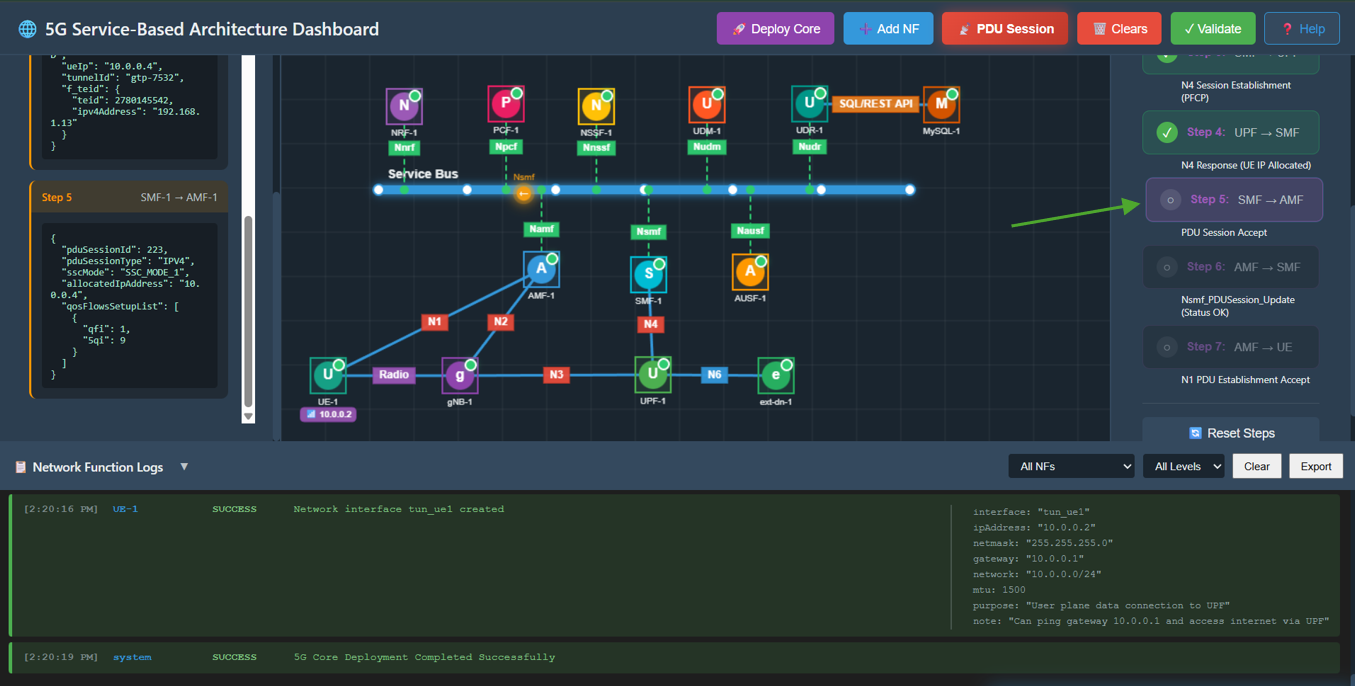
Fig: SMF Accepts Session
Step 9: AMF Updates SMF
Click Step 6 in the right panel.
- Action: AMF sends a Nsmf_PDUSession_Update message to the SMF to confirm the status is active and resources are ready.
- Observation: A packet travels from AMF to SMF. The message confirms Status: Active.
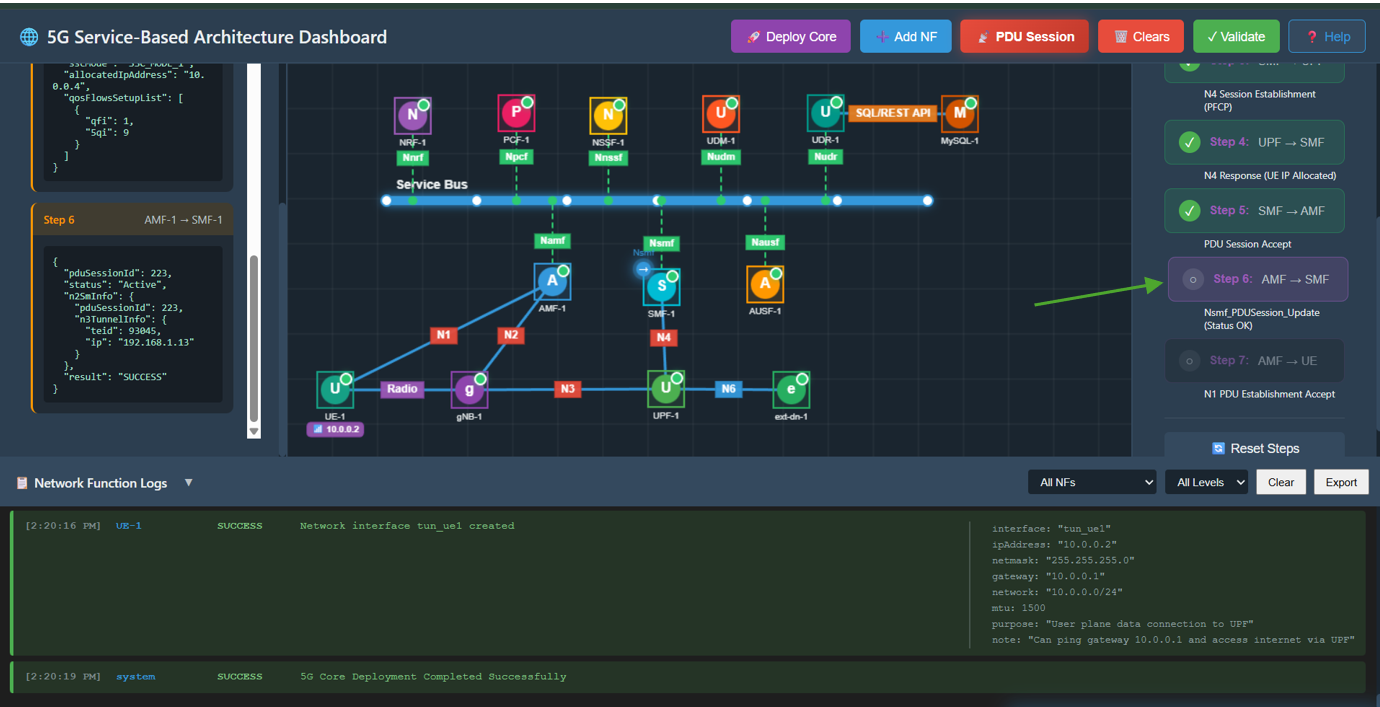
Fig: AMF Updates SMF
Step 10: AMF Notifies UE
Click Step 7 in the right panel.
- Action: AMF sends the final PDU Session Establishment Accept message to the UE.
- Observation: A packet travels from AMF to UE. The UE receives its IP address (10.0.0.x) and the PDU Session is marked as Established.
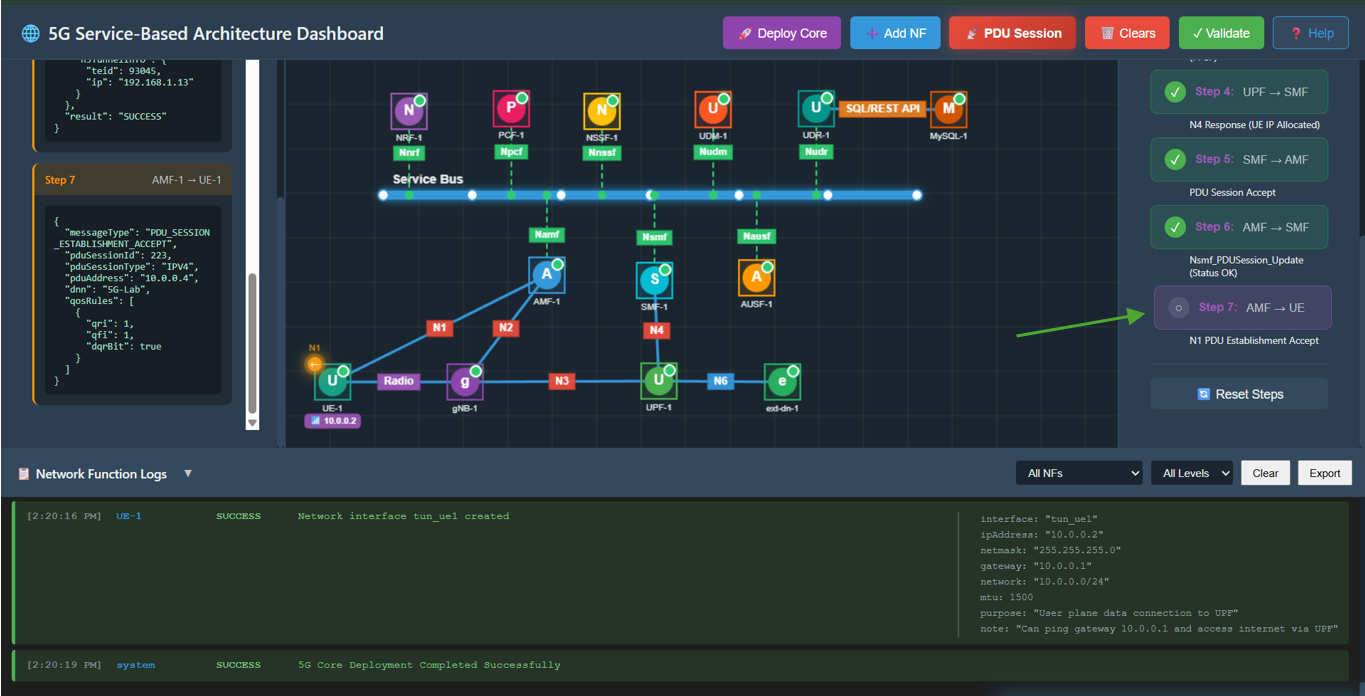
Fig: AMF Notifies UE