
Design and Implementation of Virtual Private Databases for Row-Level Access Control
Step 1: Administrator Authentication
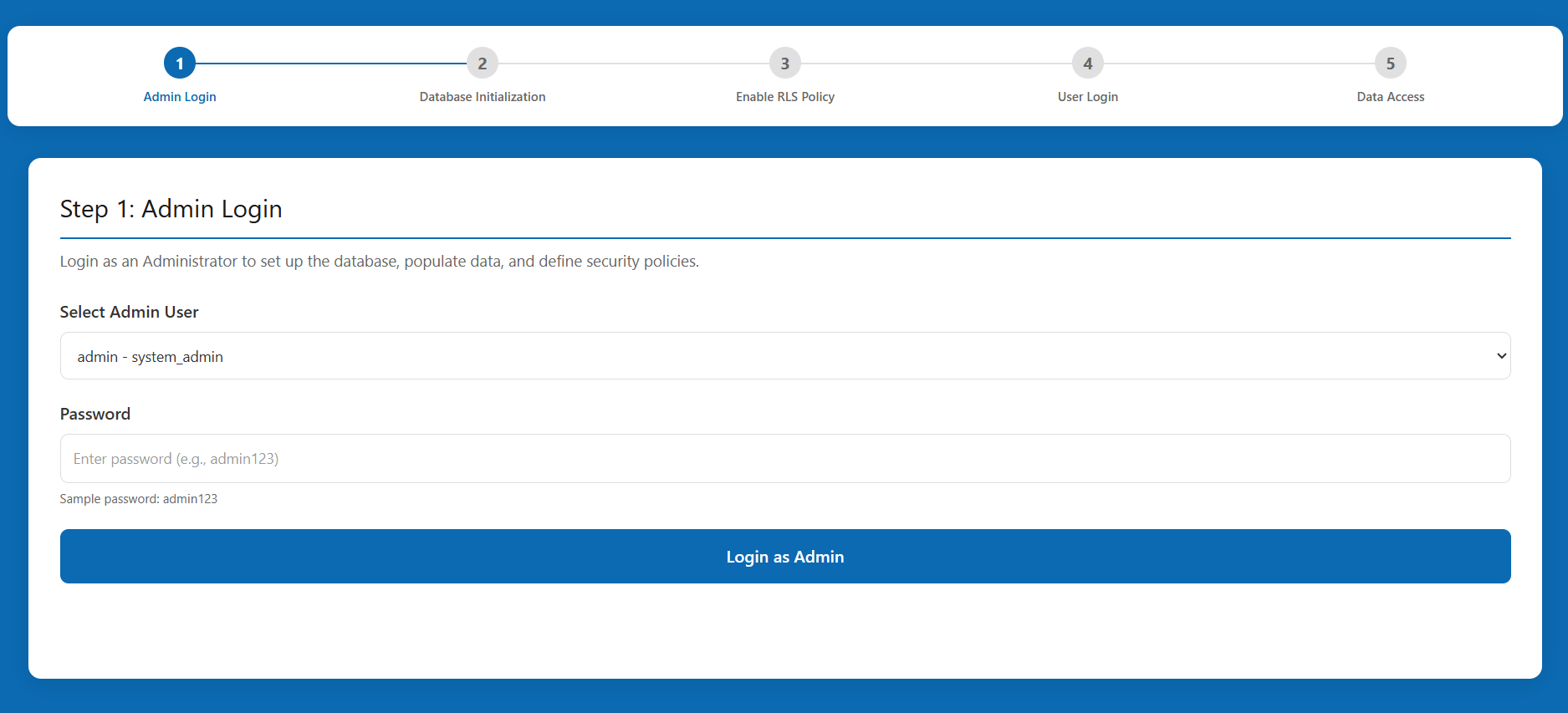
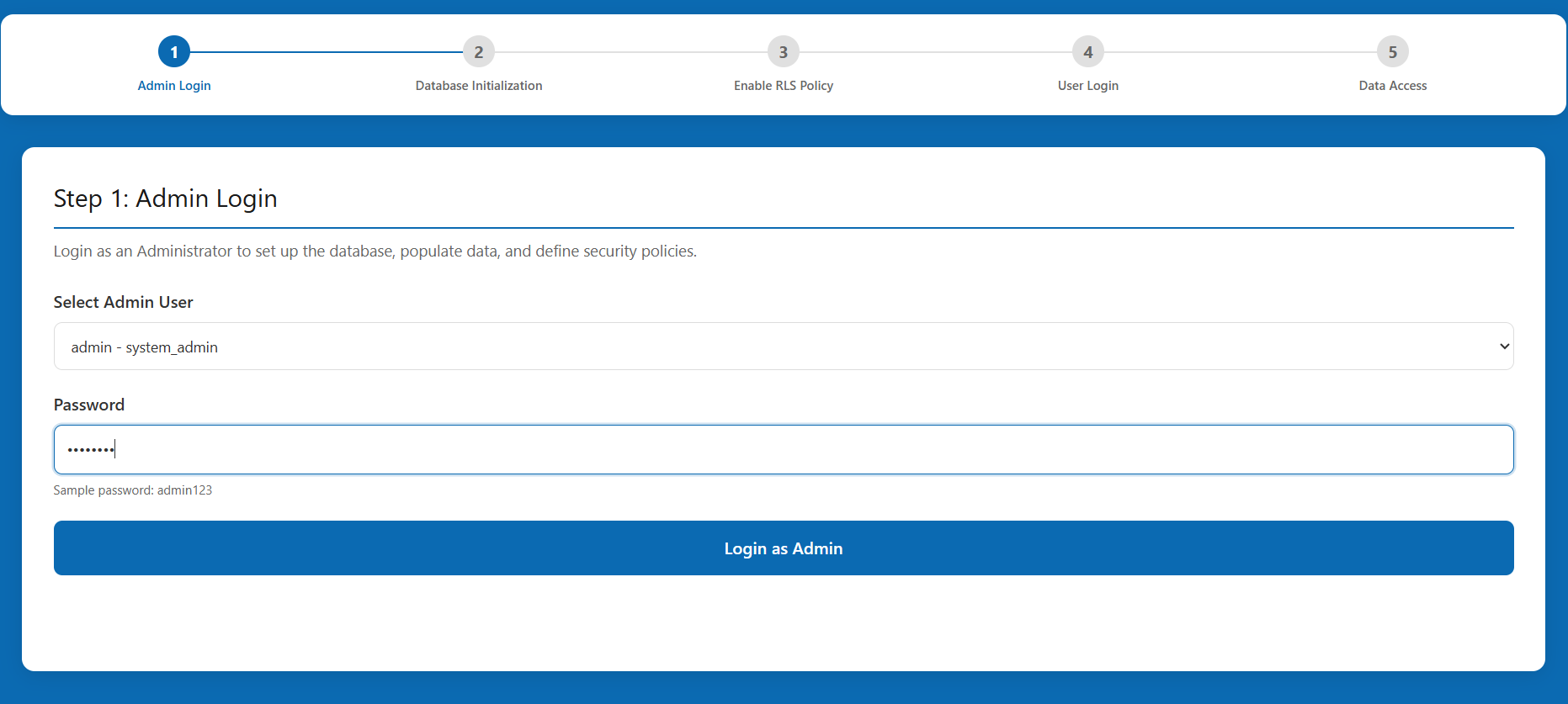
- On the "Admin Login" screen, enter the administrator credentials.
- Username:
admin - Password:
admin123
- Username:
- Click the Login as Admin button to proceed.
Step 2: Database Initialization
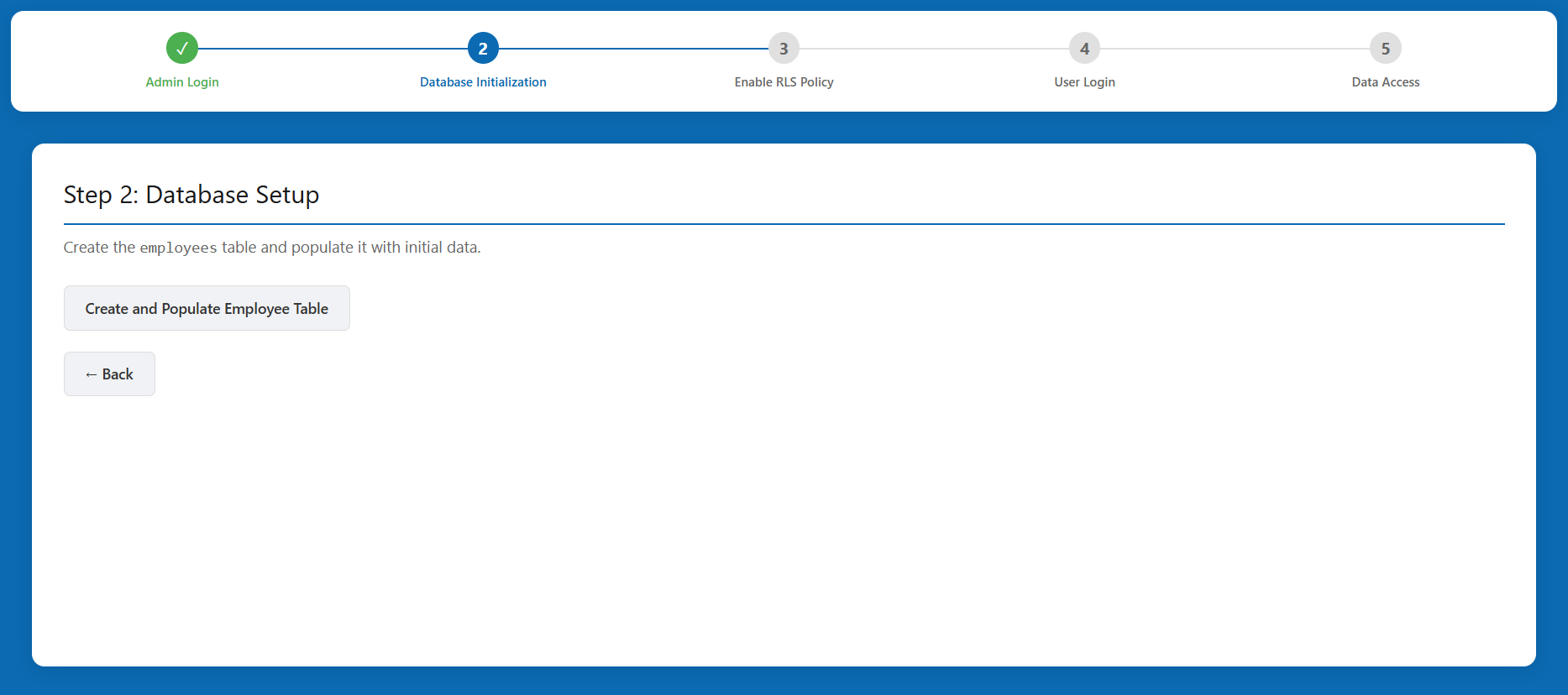
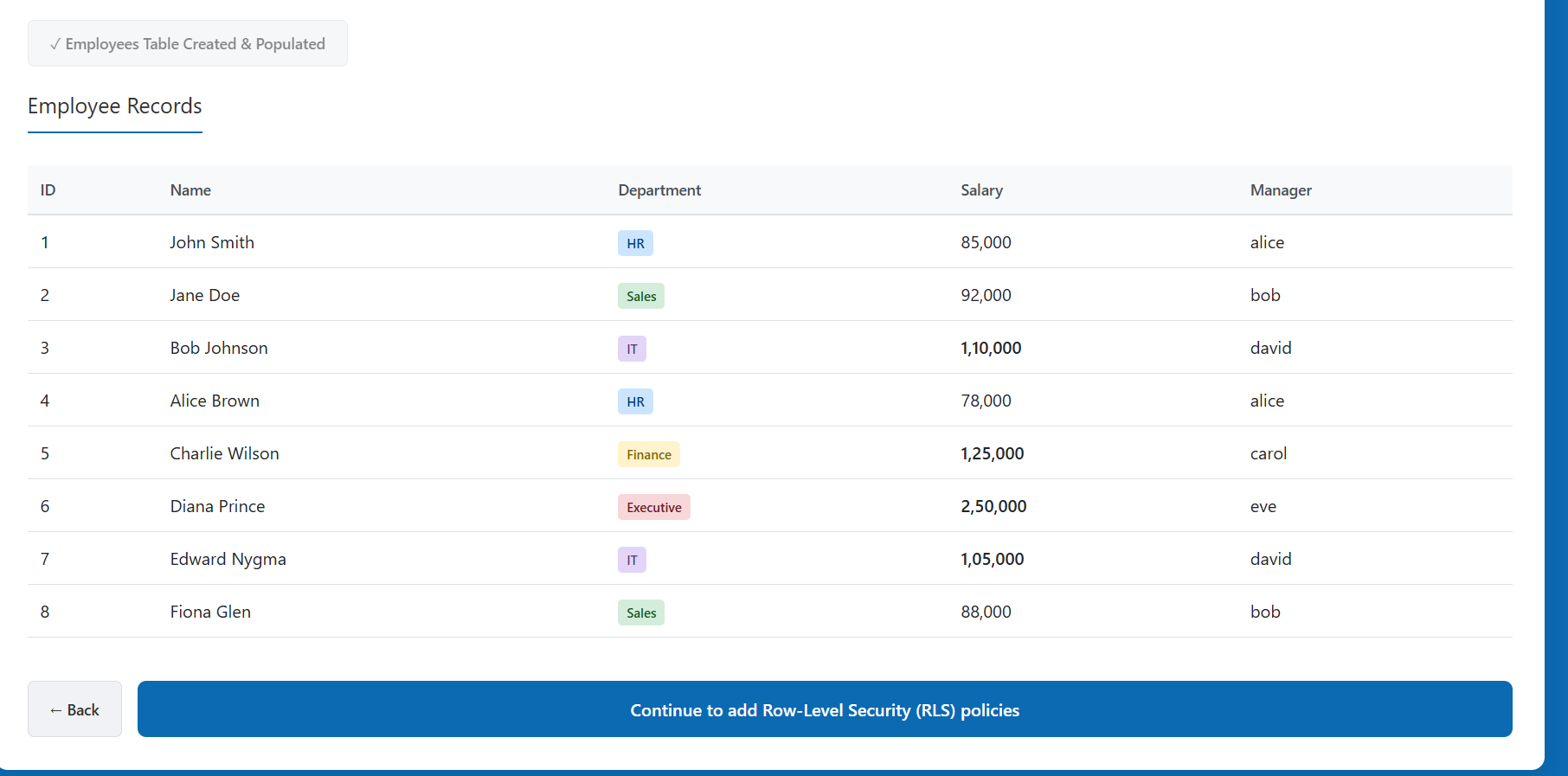
- Click the Create and Populate Employee Table button to populate the database with sample employee records across different departments (HR, Sales, Finance, and IT).
- Click Continue to add Row-Level Security (RLS) policies to proceed to security configuration.
Step 3: Row-Level Security (RLS) Configuration
- Read the explanation of Row-Level Security.
- Toggle the RLS is DISABLED switch to RLS is ENABLED.
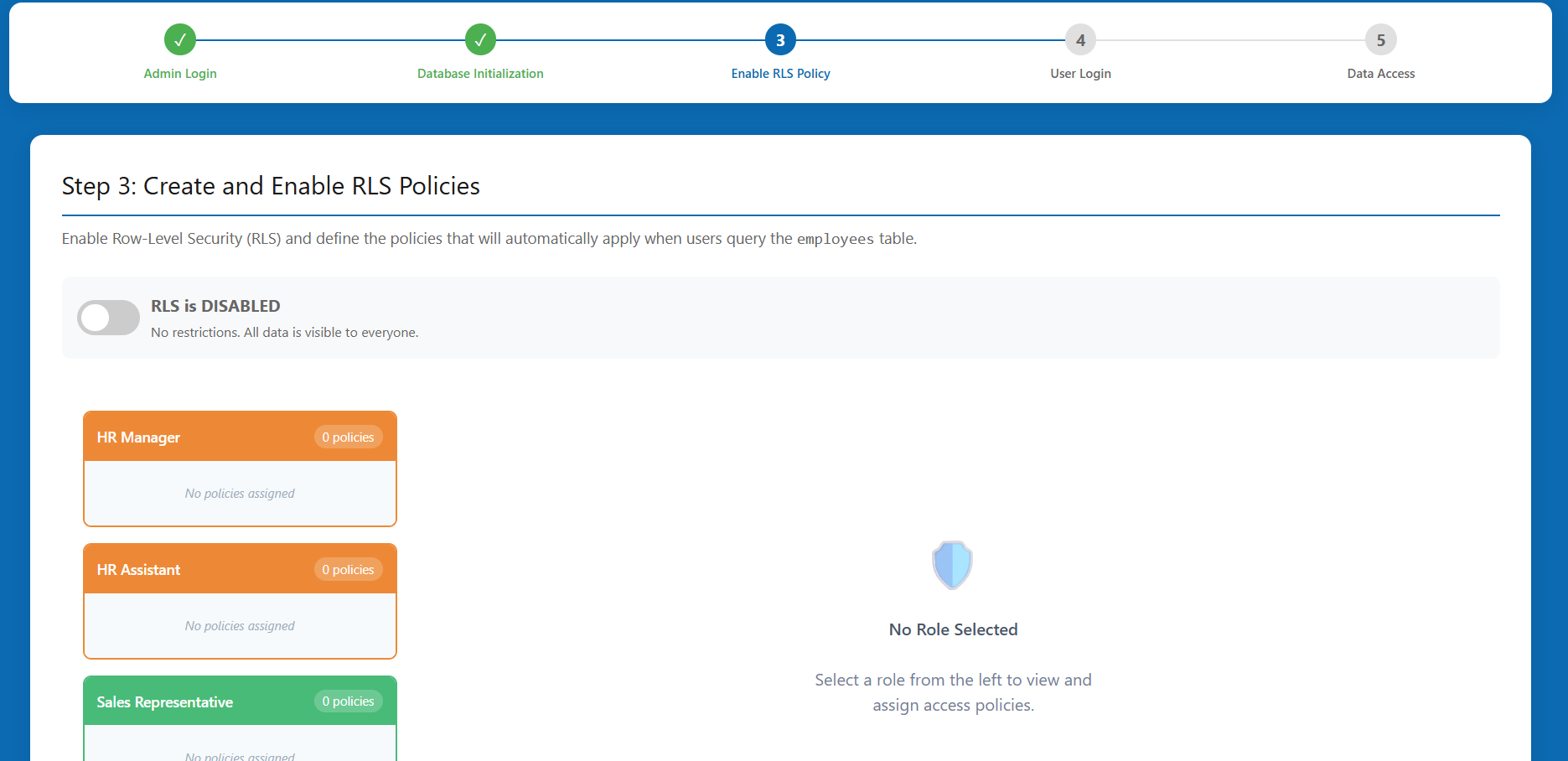
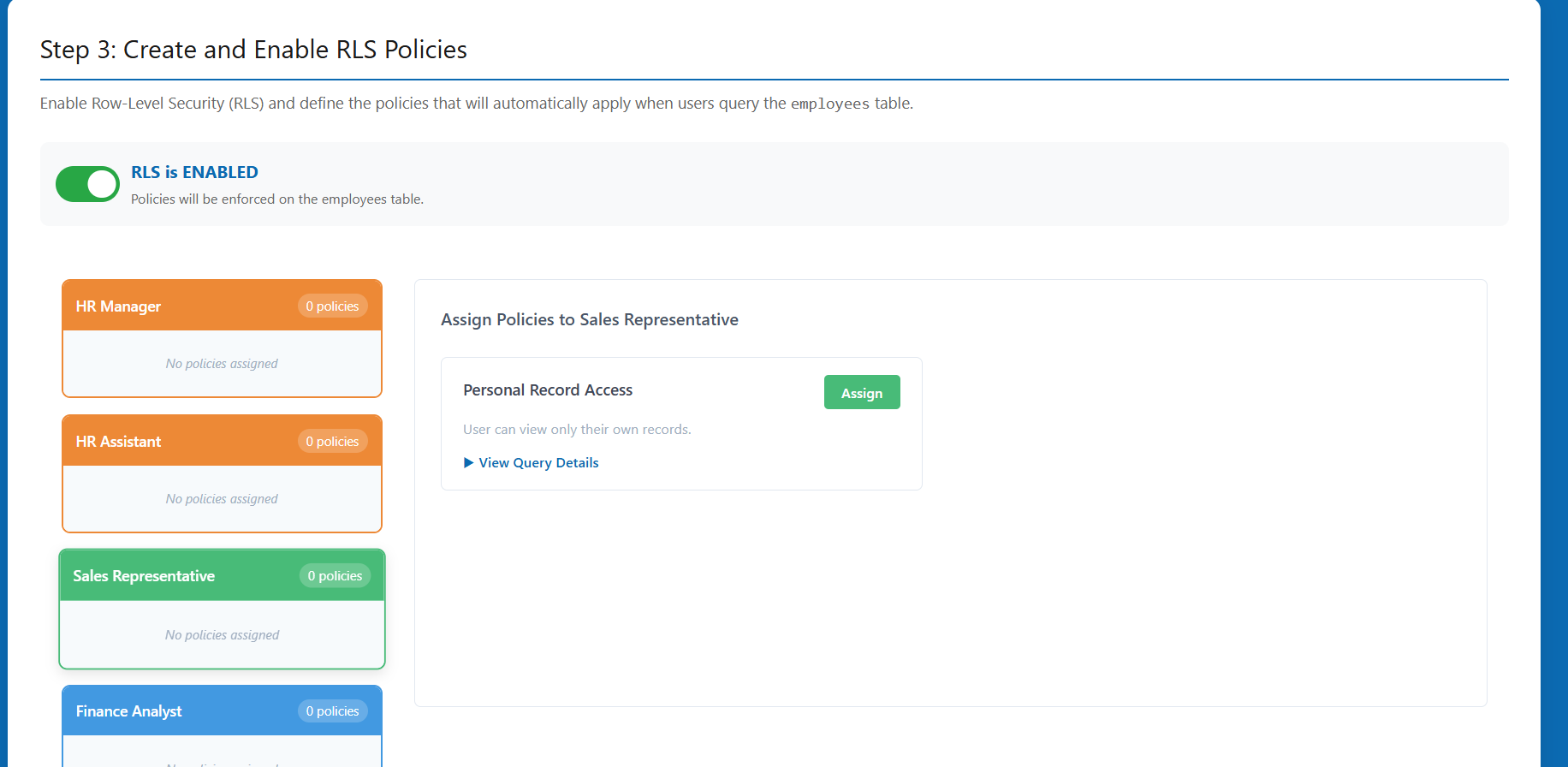
- Assign required security policies to different organizational roles by clicking Assign for the required policy:
- HR Manager: Assign the Full Employee Access policy.
- HR Assistant: Assign the Basic Information Access policy.
- Sales Representative: Assign the Personal Record Access policy.
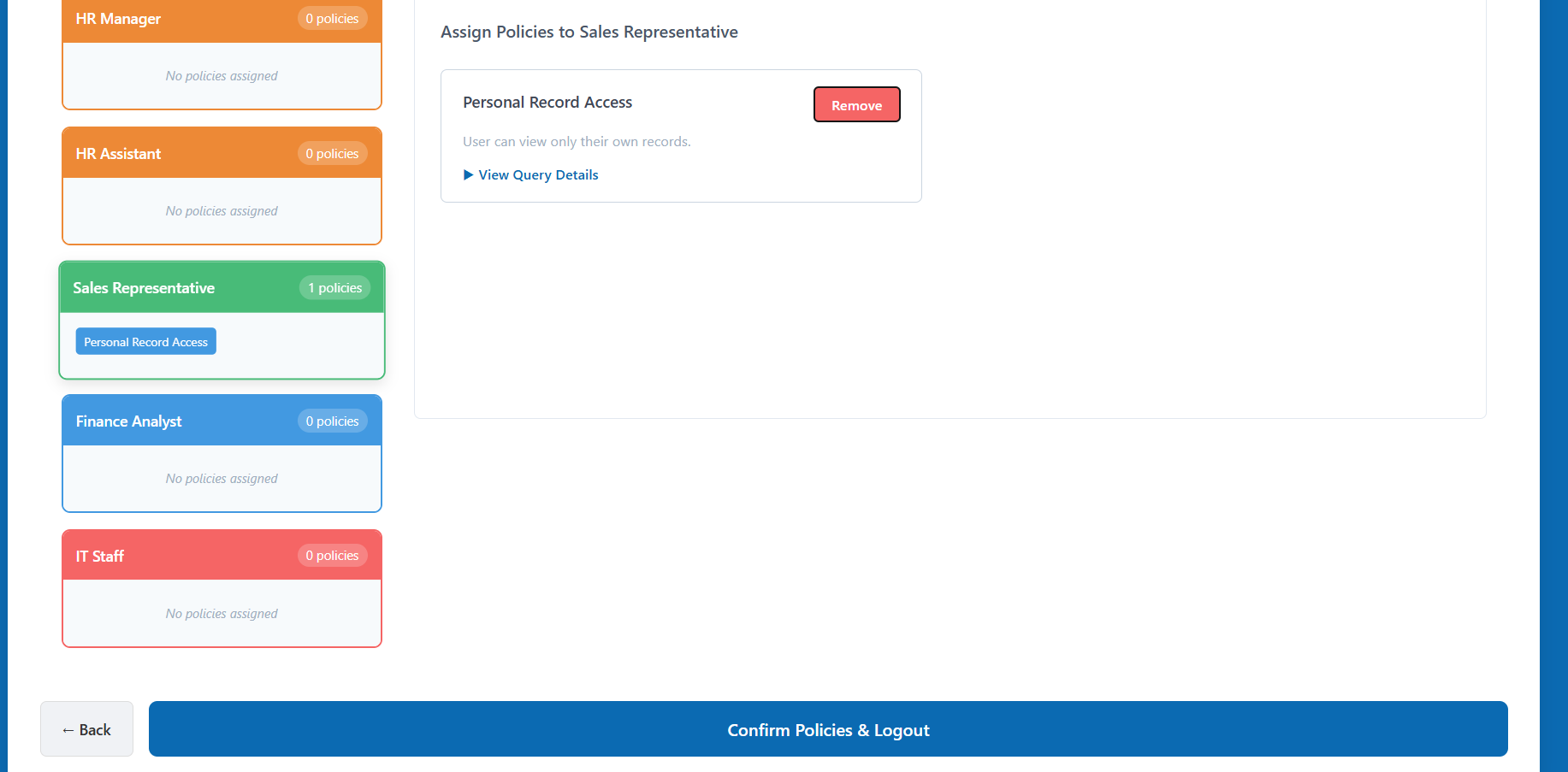
- IT Staff: Assign the Department Based Access (or Basic Information Access).
- Finance Analyst: Assign the Department Based Access policy.
- Click Confirm Policies & Logout at the bottom of the page.
Step 4: End-User Login Simulation
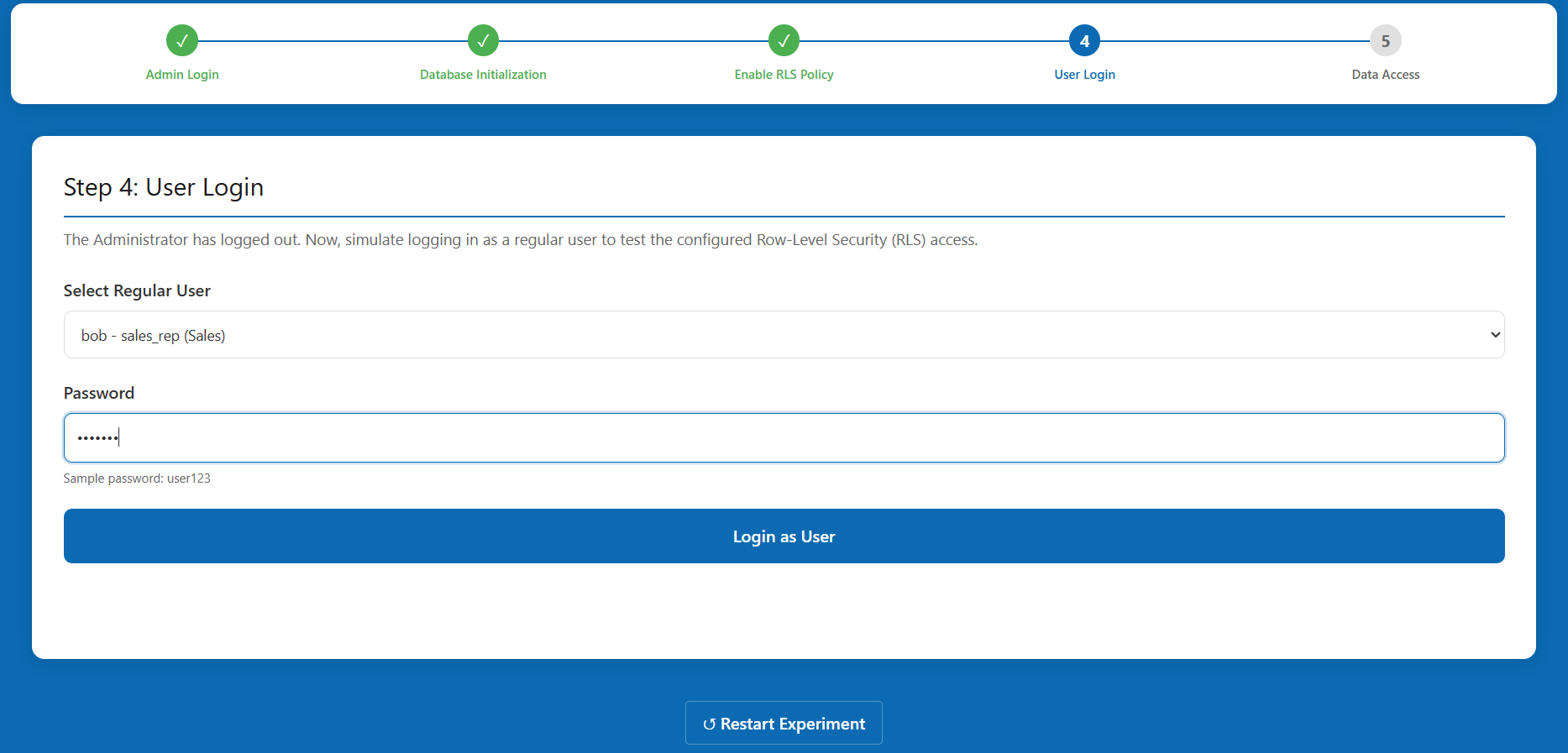
- On the "User Login" screen, select a regular user from the dropdown menu to simulate their permissions (e.g.,
bob - sales_rep (Sales)). - Enter the sample user password:
user123. - Click Login as User.
Step 5: Testing Data Access Restrictions
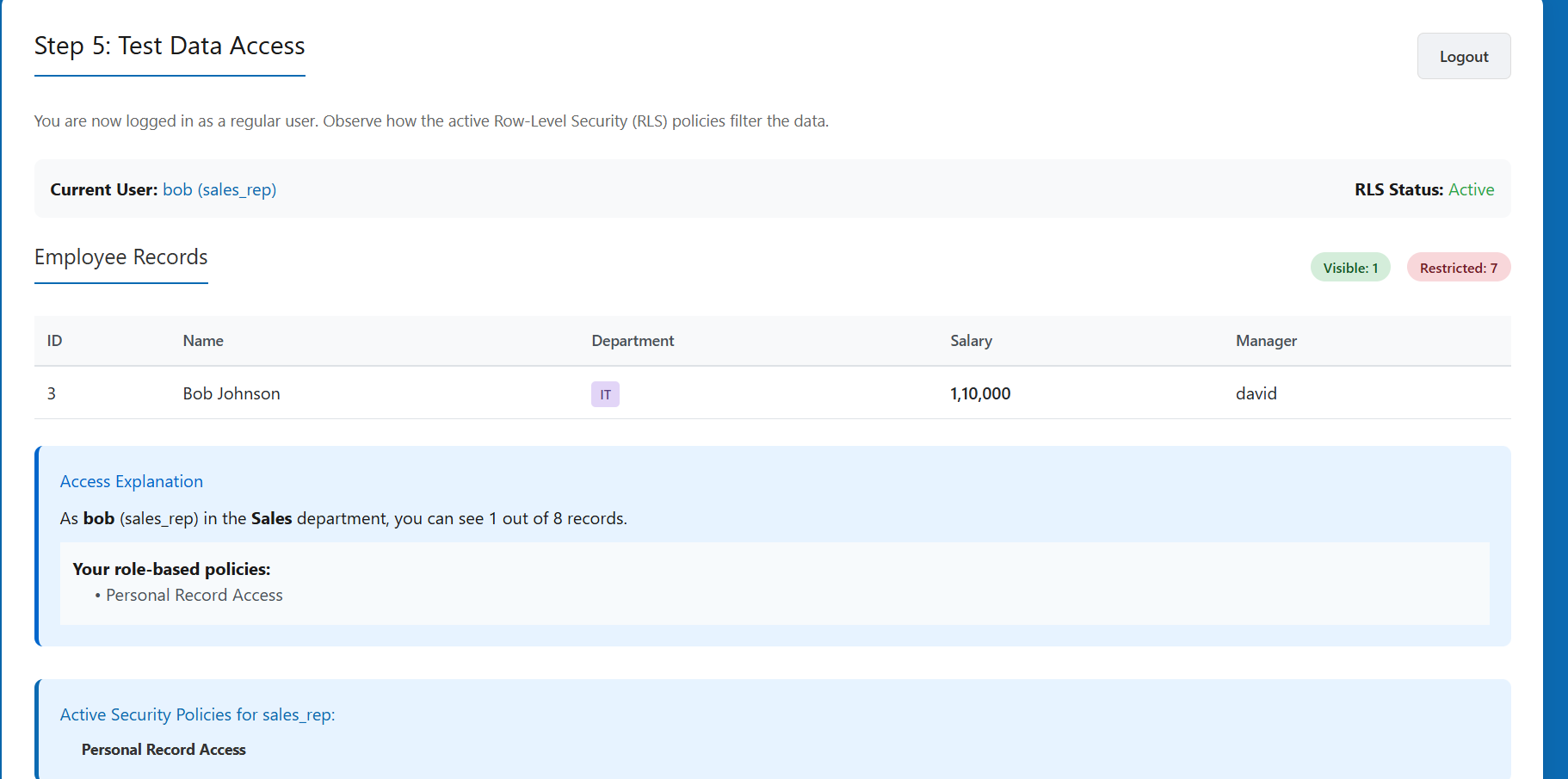
On the "Test Data Access" screen, observe the Employee Records table.
Note how the Active Security Policies have modified the database table view.
- For example, if you logged in as a Sales Representative, you will notice that you can only see your own record (
Personal Record Accesspolicy). - If logged in as an HR Assistant, you will see all records, but the salary information will be masked (
Basic Information Accesspolicy).
- For example, if you logged in as a Sales Representative, you will notice that you can only see your own record (
Review the "Active Security Policies" section below the table to confirm which policy is currently enforced.
Click the Logout button at the top right to return to Step 4 and test accessibility with a different user role.
To restart the entire database setup, click ↺ Restart Experiment at the bottom of the page.