SQL Injection Attack Simulation and Mitigation Techniques
Step 1: Create an Account
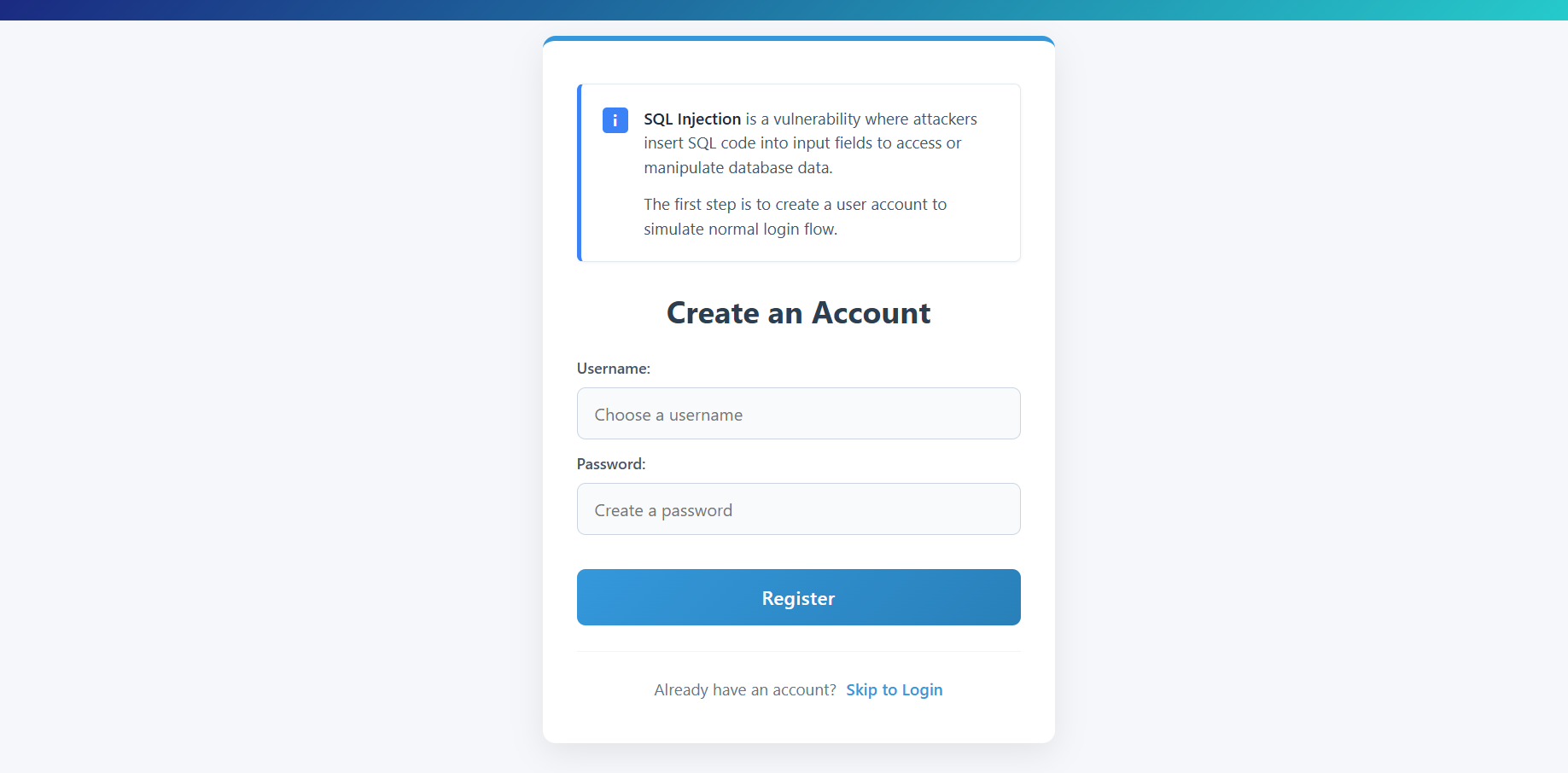
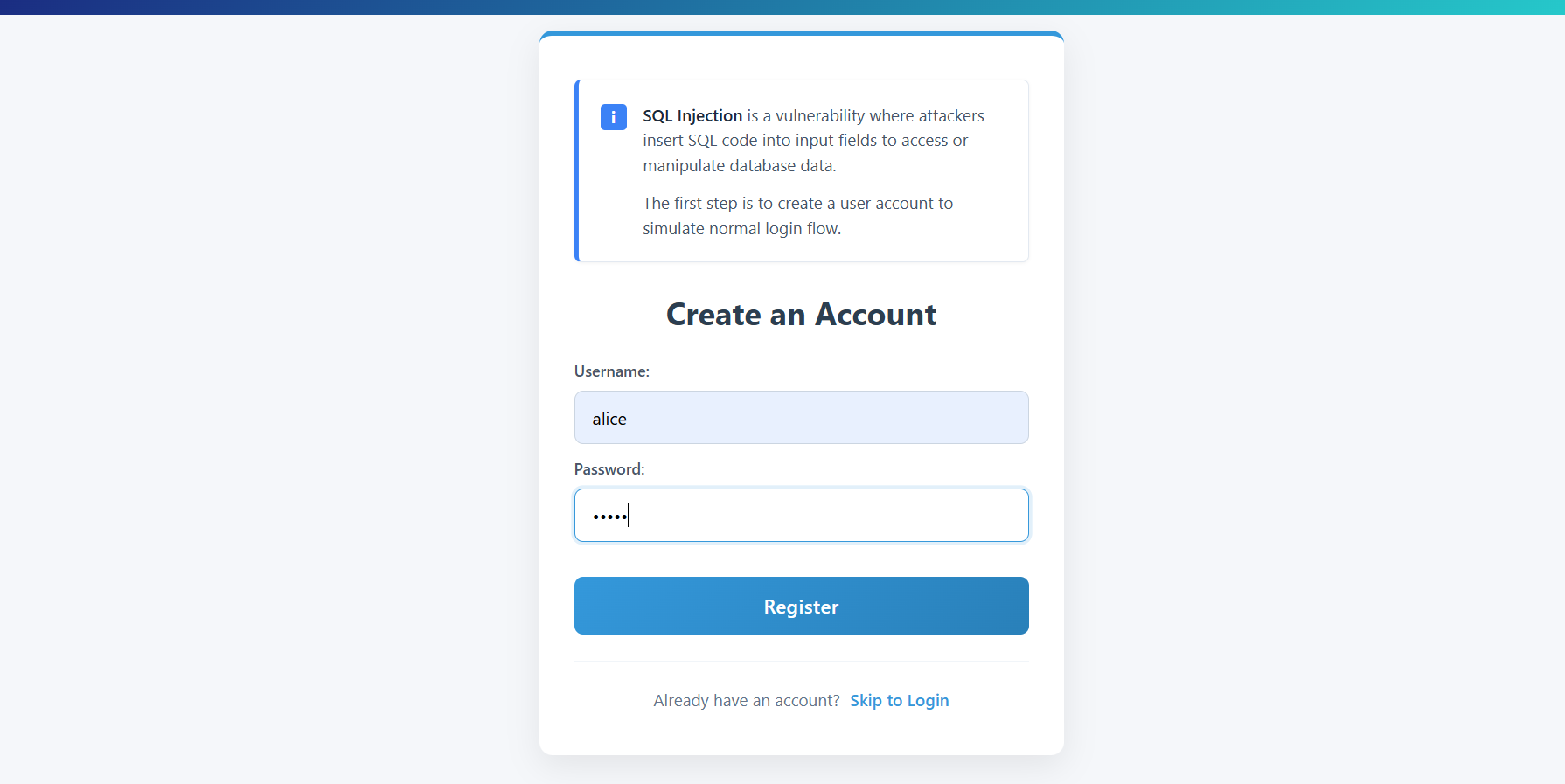
The first step in the simulation is to create a valid user account to establish a baseline for normal login behavior.
- Click on the Create an Account screen if not already there.
- Enter a Username (e.g.,
alice) and a Password. - Click Register.
Step 2: Normal Login (Vulnerable Mode)
After creating an account, verify that the login works correctly under normal conditions.
- Navigate to the Web Login Form.
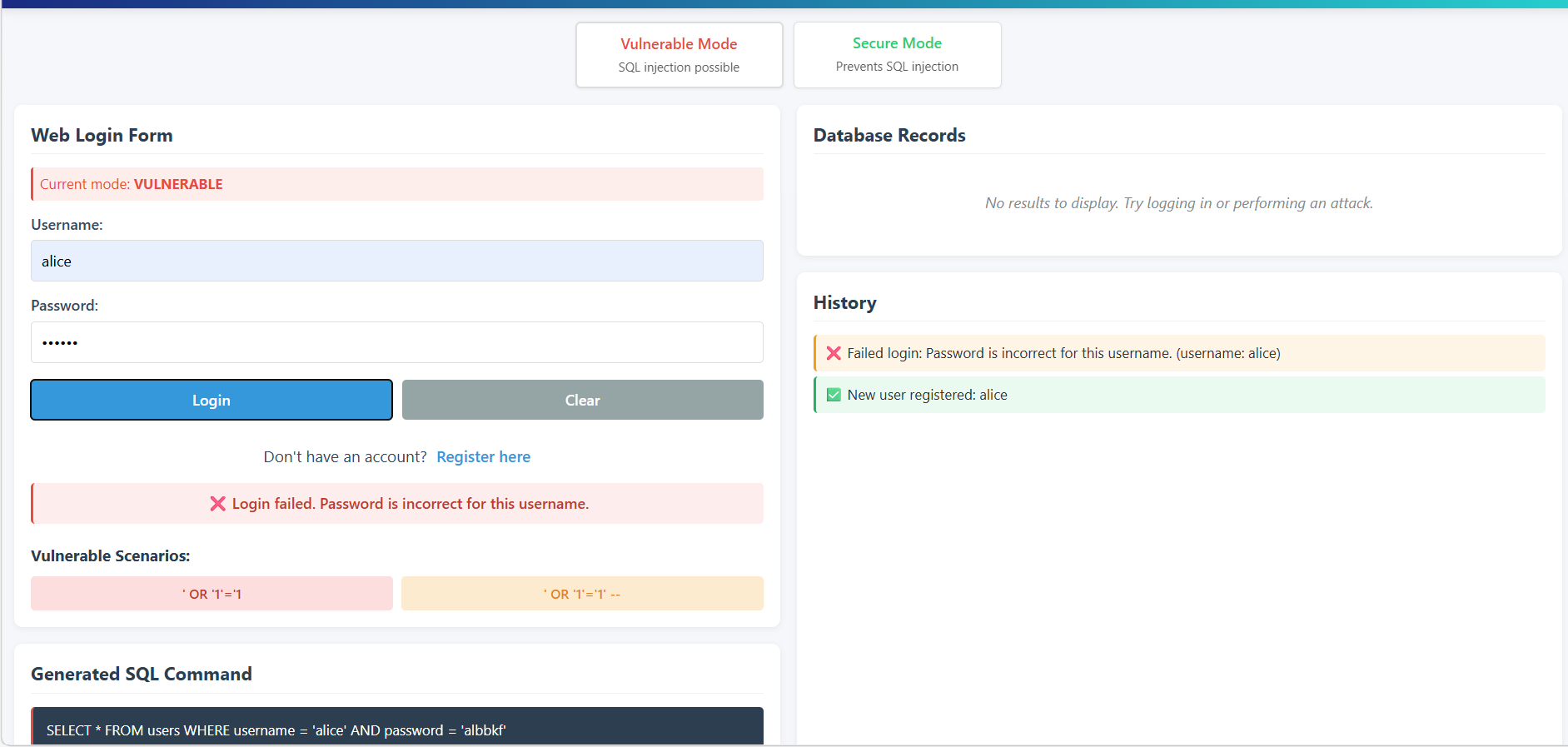
- Ensure the Current Mode is set to VULNERABLE.
- Enter the correct credentials for the account created in Step 1.
- Observe the Generated SQL Command and the History panel showing a successful login.
Step 3: Perform SQL Injection Attack (Tautology-Based)
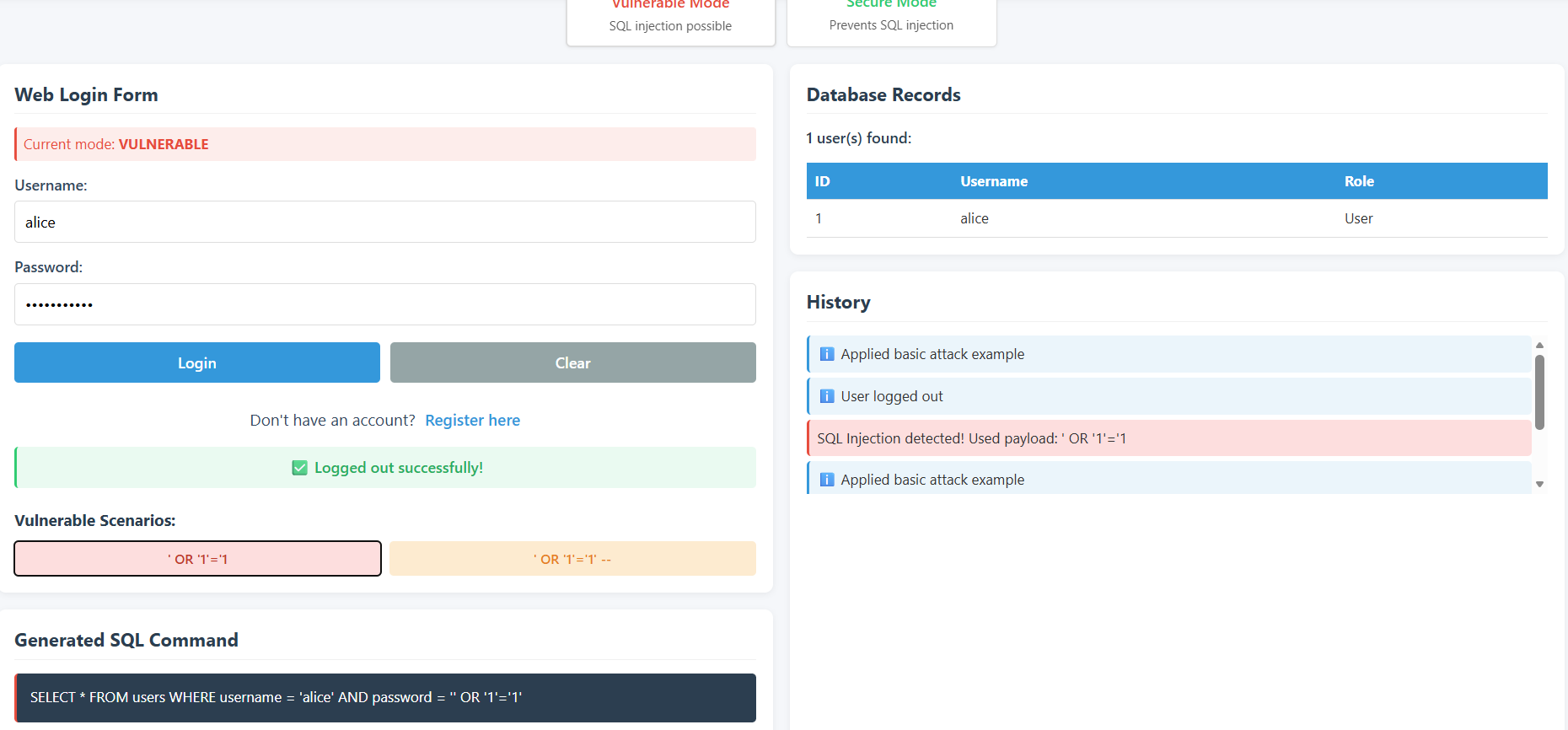
Now, attempt to bypass authentication using a SQL Injection payload.
- Enter any Username (e.g.,
alice). - In the Password field, enter the payload:
' OR '1'='1. - Click Login.
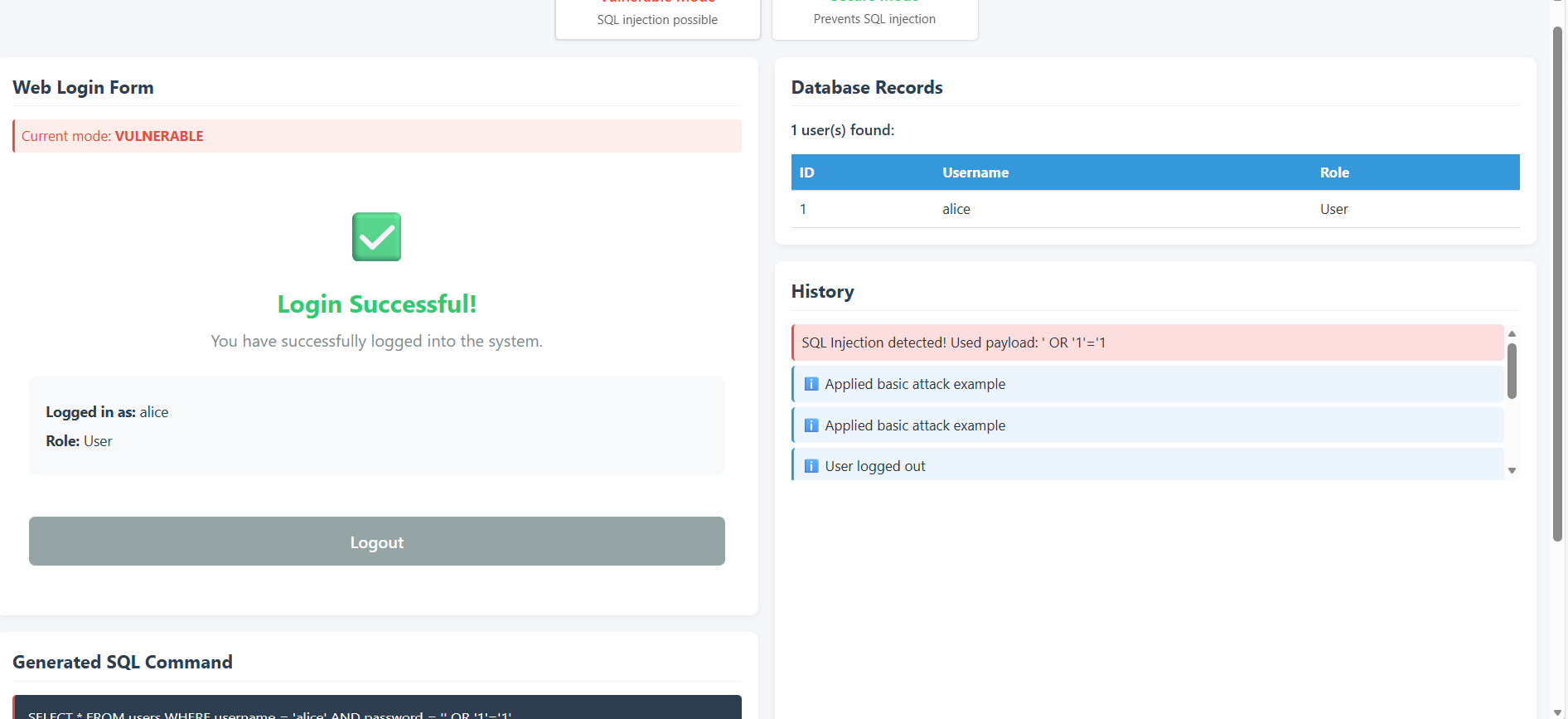
- Observe how the Generated SQL Command is altered by the payload, causing the database to return the user record without requiring a valid password.
- The Login Successful! message will appear even though the password was incorrect.
Step 4: Switch to Secure Mode
Implement countermeasures by switching the application to use parameterized queries.
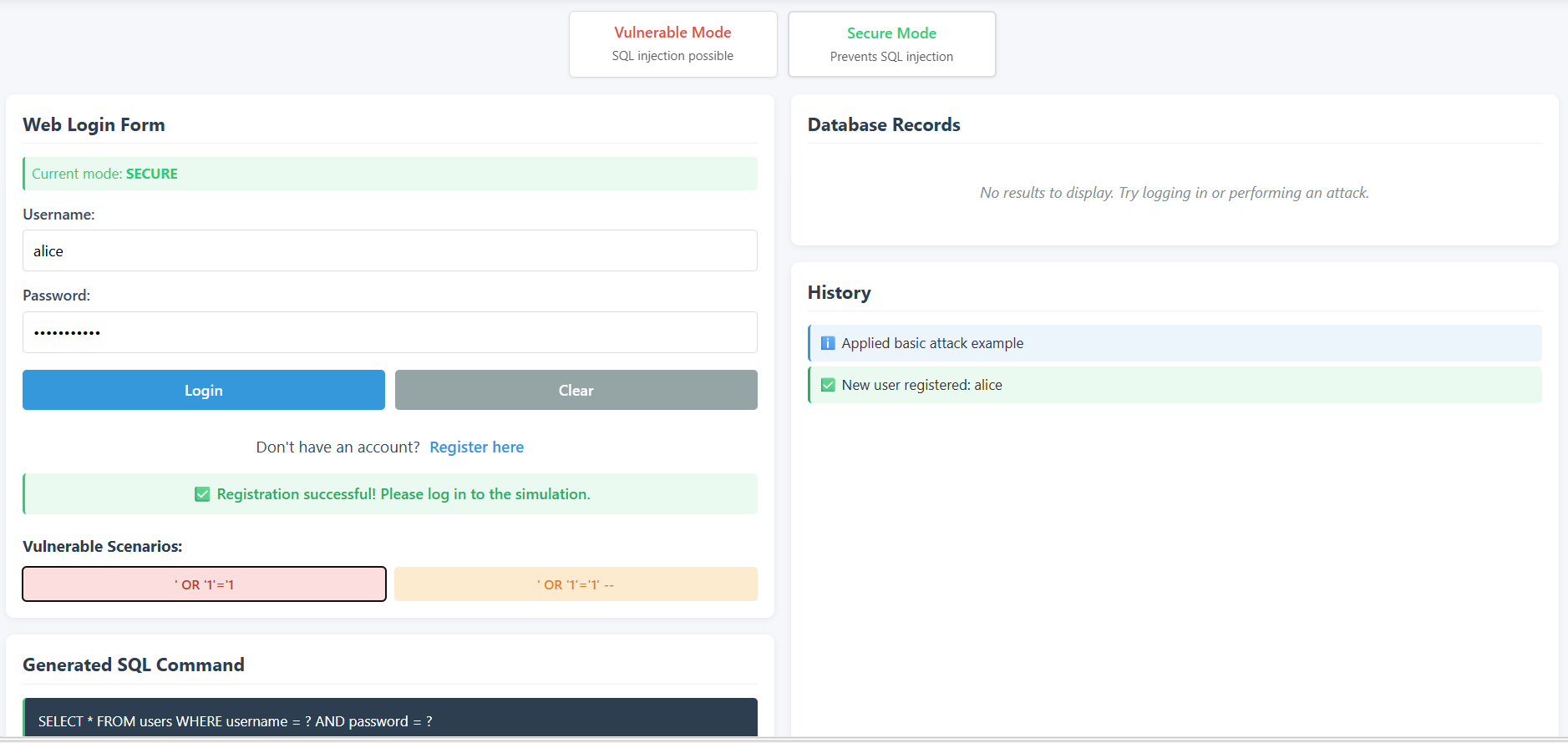
- Click on the Secure Mode button at the top of the interface.
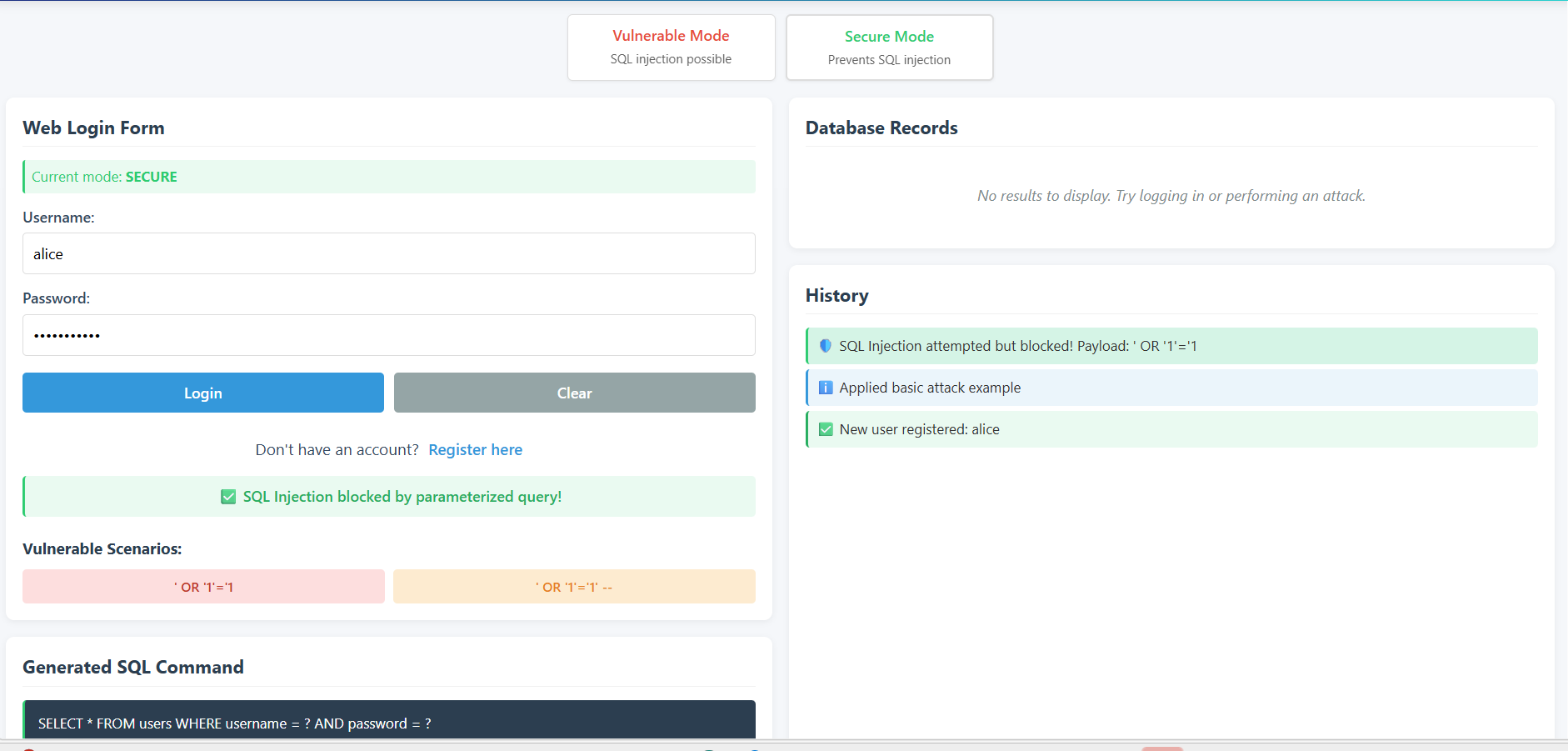
- Observe that the Current Mode changes to SECURE.
- Note the change in the Generated SQL Command template, which now uses placeholders (
?) instead of direct string concatenation.
Step 5: Verify SQL Injection Mitigation
Test the same SQL Injection payload in Secure Mode to verify that it is no longer effective.
- Re-enter the same payload: `' OR '1'='1' in the Password field.
- Click Login.
- Observe the History and the Login Form. The application now treats the payload as literal data.
- A SQL Injection blocked! or login failure message will be displayed, confirming that the vulnerability has been patched.