
Quantum Mechanics of a Particle in a Potential Well
Step 1: Understanding the Interface
When you open the simulation, you'll see three main sections:
- Left Panel (Control Panel): Contains all adjustable parameters and controls
- Center Area (Simulation Canvas): Displays the animated wavefunction
- Right Panel (Info Panel): Shows procedure steps, equations, and observations
Basic Experiment
Step 2: Set Initial Parameters
- Set the Quantum Number (n) = 1 using the slider (this is the ground state)
- Keep the Box Length (L) = 5 nm for initial observation
- Set Wave Amplitude = 100 for clear visualization
- Set Animation Speed = 5x for comfortable viewing
Step 3: Start the Simulation
- Click the ▶ Start button to begin the simulation
- Observe the wavefunction oscillating in time
- Notice the status badge changes to "Running"
- Use ⏸ Pause to freeze the animation at any point
Step 4: Observe the Ground State (n = 1)
- The wavefunction has 0 nodes (zero crossings inside the box)
- There is 1 antinode (peak) at the center
- Note the Energy value displayed in Live Measurements
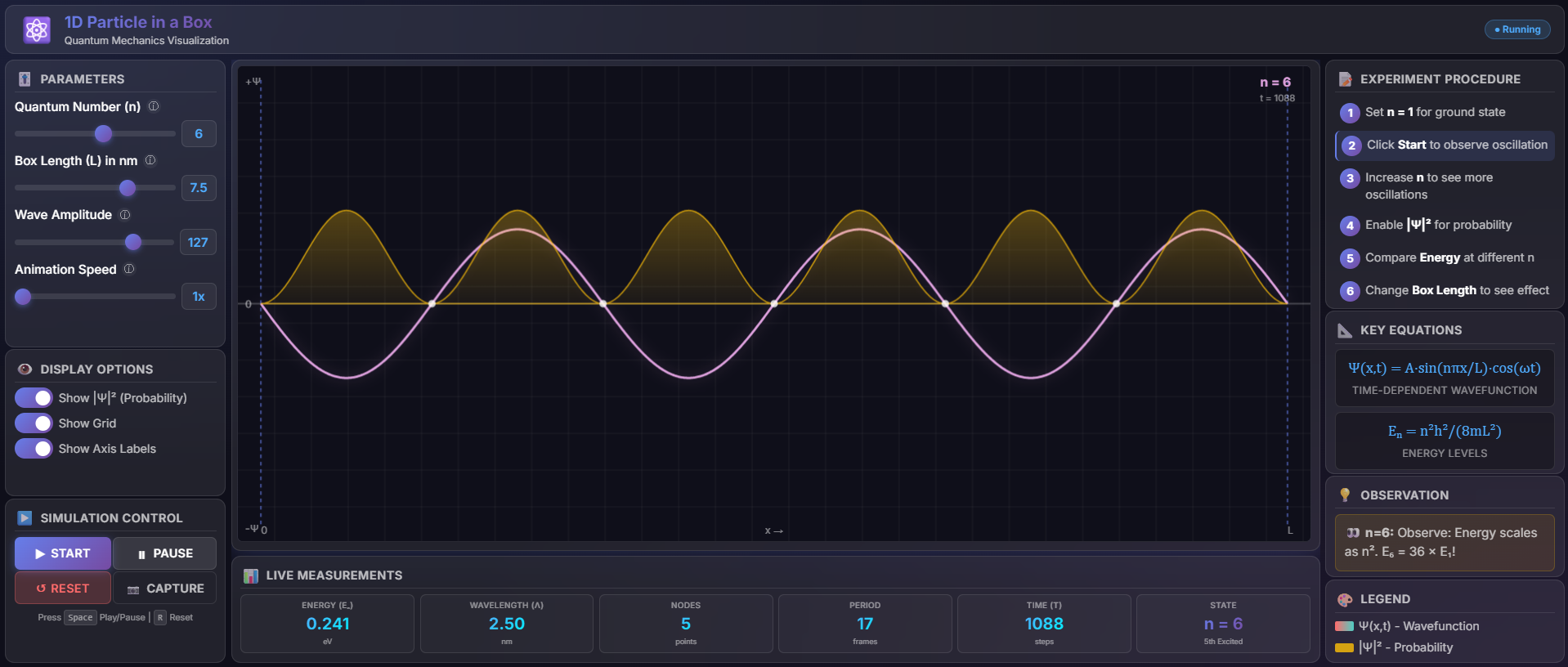
Fig. 1 Wave function and the Probability of the Particles trapped in 1D box.
Exploring Higher Energy States
Step 5: Increase Quantum Number
- Gradually increase n from 1 to 10 using the slider
- For each value of n, observe:
- Number of peaks (antinodes) = n
- Number of nodes = n - 1
- Energy increases as n²
Step 6: Record Observations
Fill in the observation table for each quantum number:
Probability Density Analysis
Step 7: Enable Probability Display
- In the Display Options section, toggle ON "Show |Ψ|² (Probability)"
- Observe the yellow curve showing probability density as shown in fig.1
- Compare with the wavefunction (gradient colored curve)
Step 8: Compare Wavefunction and Probability
- The probability density is always positive
- Probability is zero at nodes and maximum at antinodes
- The particle is most likely to be found at antinode positions
Box Length Investigation
Step 9: Vary Box Length
- Keep n = 3 constant
- Change Box Length (L) from 1 nm to 10 nm
- Observe how:
- Wavelength changes with box length
- Energy decreases for larger boxes
- The same number of nodes but spread differently
Step 10: Record Box Length Effect
Additional Features
Step 11: Use Keyboard Shortcuts
- Press Spacebar to toggle Play/Pause
- Press R to Reset the simulation
Step 12: Capture Screenshots
- Click the 📷 Capture button to save the current visualization
- Use these for your lab report
Step 13: Reset and Repeat
- Click the ↺ Reset button to return to initial state
- Repeat the experiment with different parameter combinations
Analysis and Conclusion
Step 14: Plot Graph
Plot graphs of:
- Energy (Eₙ) vs Quantum Number (n) - Should show quadratic relationship
- Nodes vs Quantum Number (n) - Should show linear relationship (nodes = n-1)
Step 15: Write Inferences
Based on your observations, answer:
- How does energy scale with quantum number?
- What is the relationship between n and number of nodes?
- How does box length affect the energy levels?
- Where is the particle most likely to be found for each state?
Tips for Best Results
💡 Use the Pause button to closely examine wavefunction at specific times 💡 Compare different n values side by side using screenshots 💡 Toggle probability display to understand the physical meaning 💡 Experiment with different box lengths to see confinement effects