Step 1: Introduction and Learning Concepts
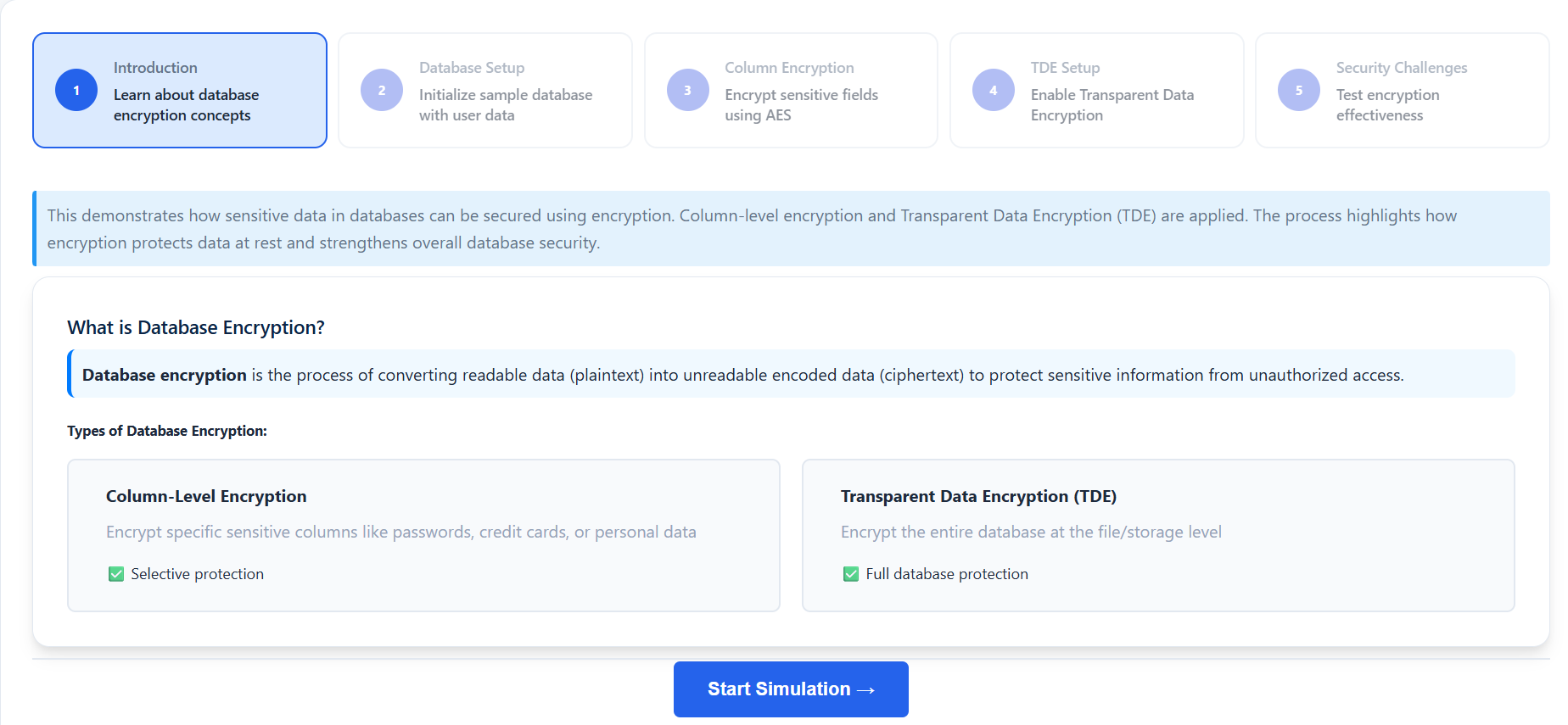
- Read the overview of database encryption.
- Understand the differences between Column-Level Encryption and Transparent Data Encryption (TDE).
- Observe how encryption converts plaintext data into unreadable ciphertext to prevent unauthorized access.
- Click "Start Simulation →" to begin the process.
Step 2: Database Setup
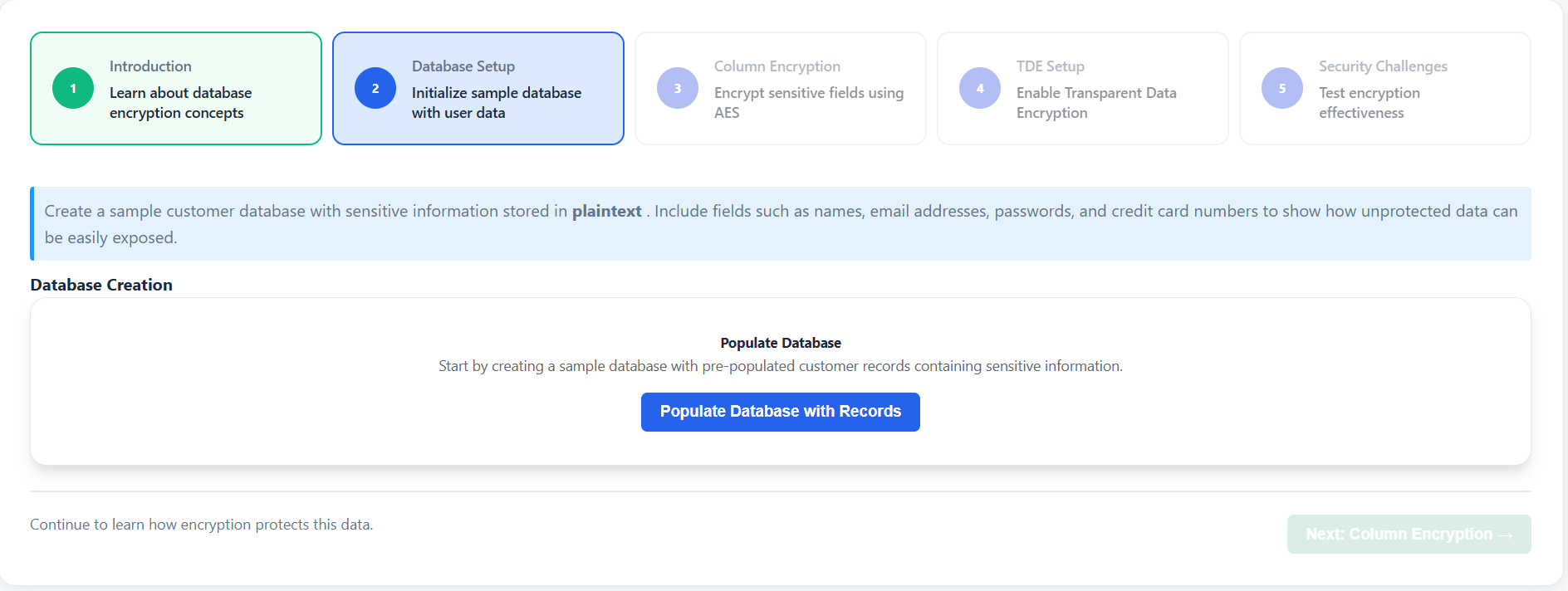
- Click "Populate Database with Records" to initialize a sample customer database.
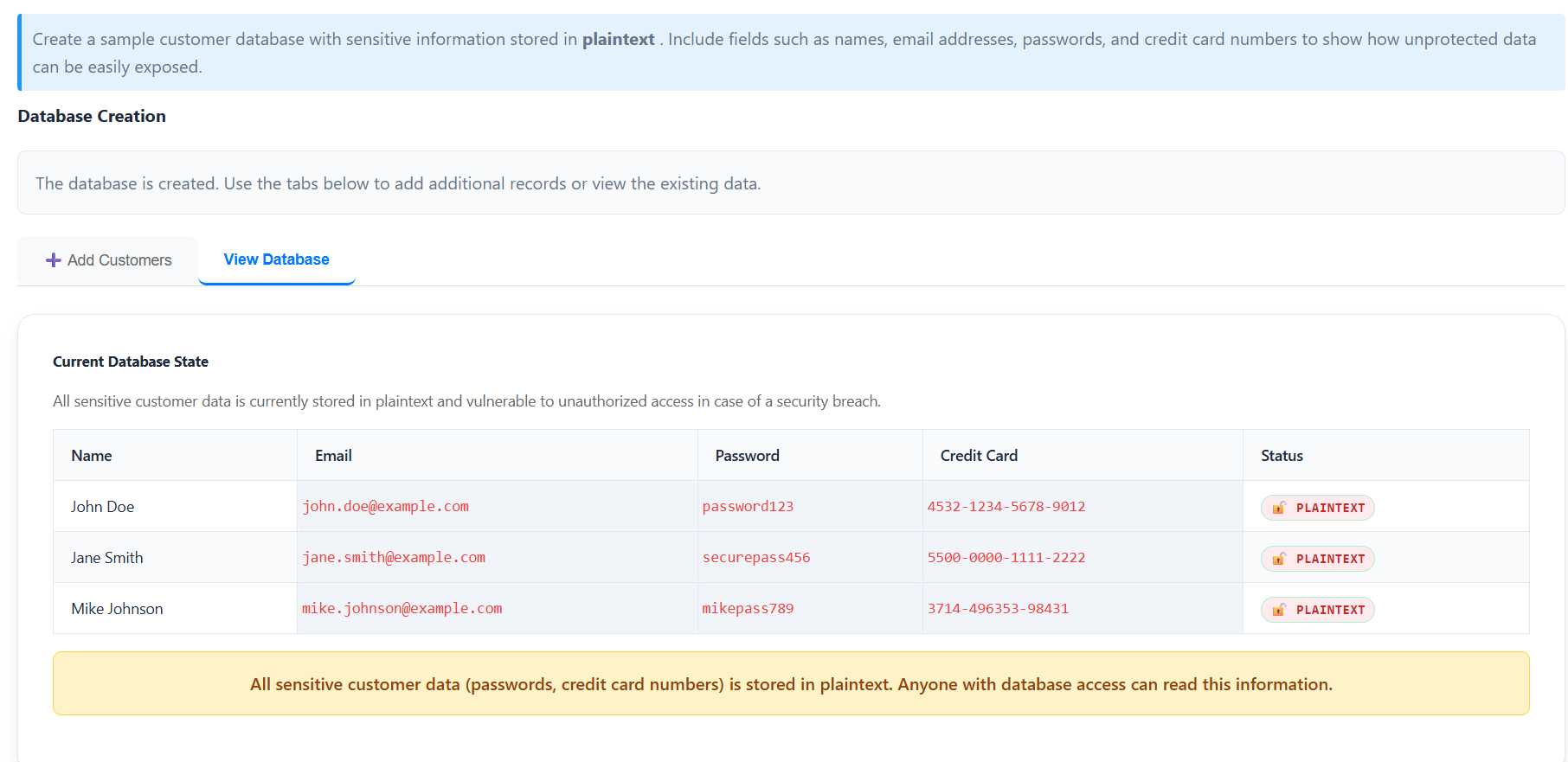
- Explore the loaded records in the "View Database" tab.
- Identify sensitive fields such as Passwords and Credit Card Numbers that are currently stored in plaintext.
- Use the "Add Customers" tab to manually add new records and see how unprotected data is exposed.
- Click "Next: Column Encryption →" to proceed.
Step 3: Implementing Column-Level Encryption
- Learn about AES (Advanced Encryption Standard) encryption.
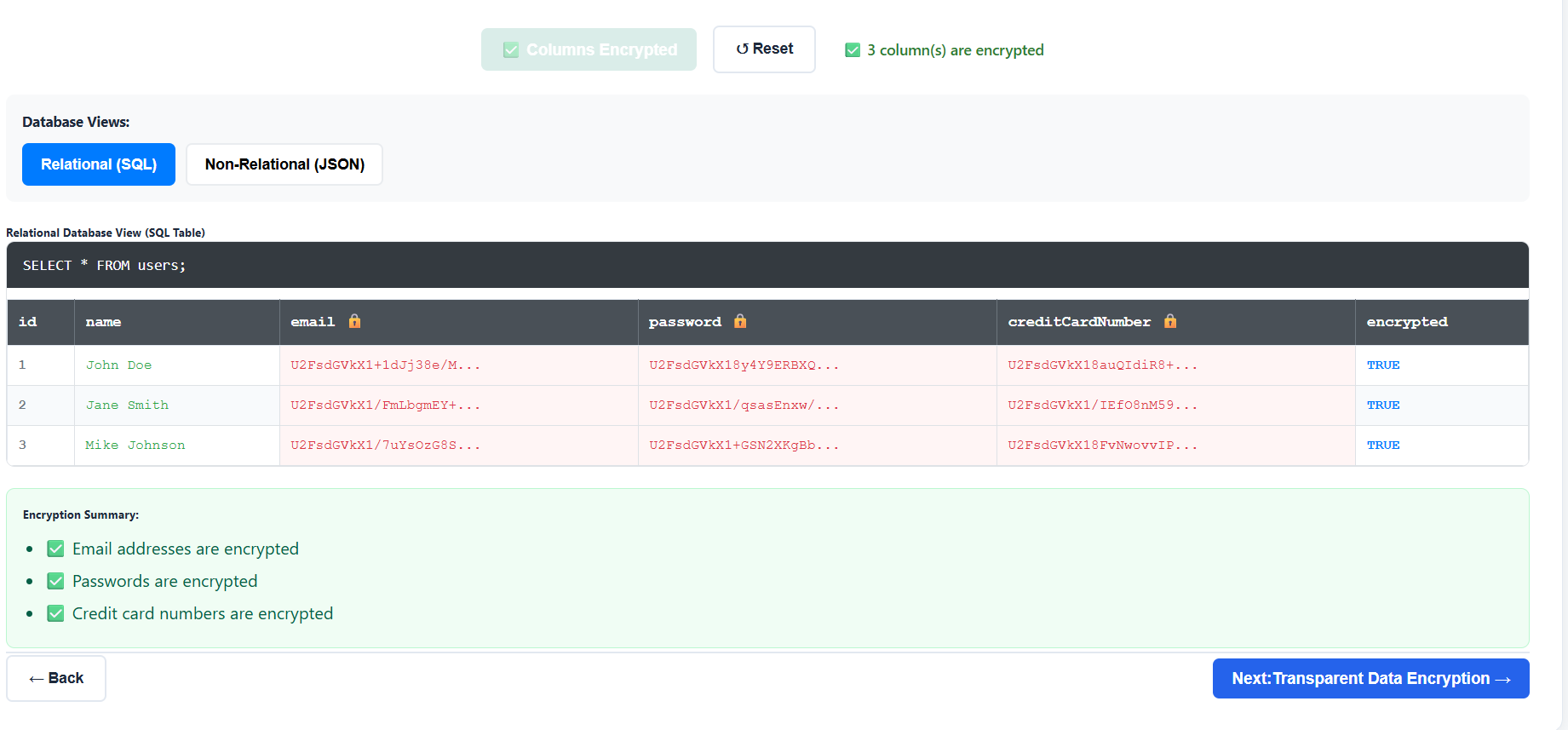
- Select the specific columns you want to protect (e.g., Email Address, Password, Credit Card).
- Click "Encrypt Selected Columns" to apply encryption to the sensitive fields in the database.
- Toggle between "Relational (SQL)" and "Non-Relational (JSON)" views to see how the encrypted data looks in different database formats.
- Click "Next: Transparent Data Encryption →" to continue.
Step 4: Enabling Transparent Data Encryption (TDE)
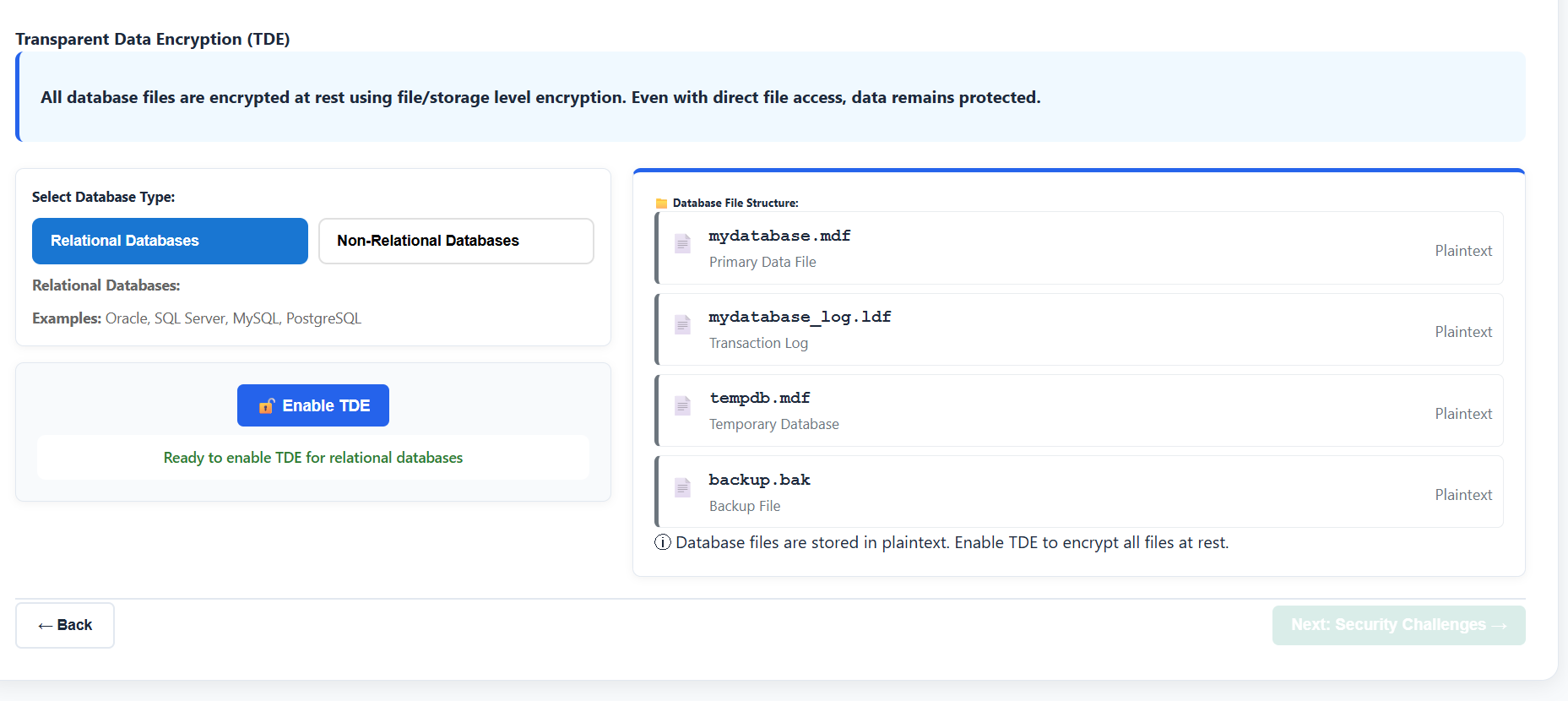
- Select a database type ("Relational" or "Non-Relational") to see its TDE implementation details.
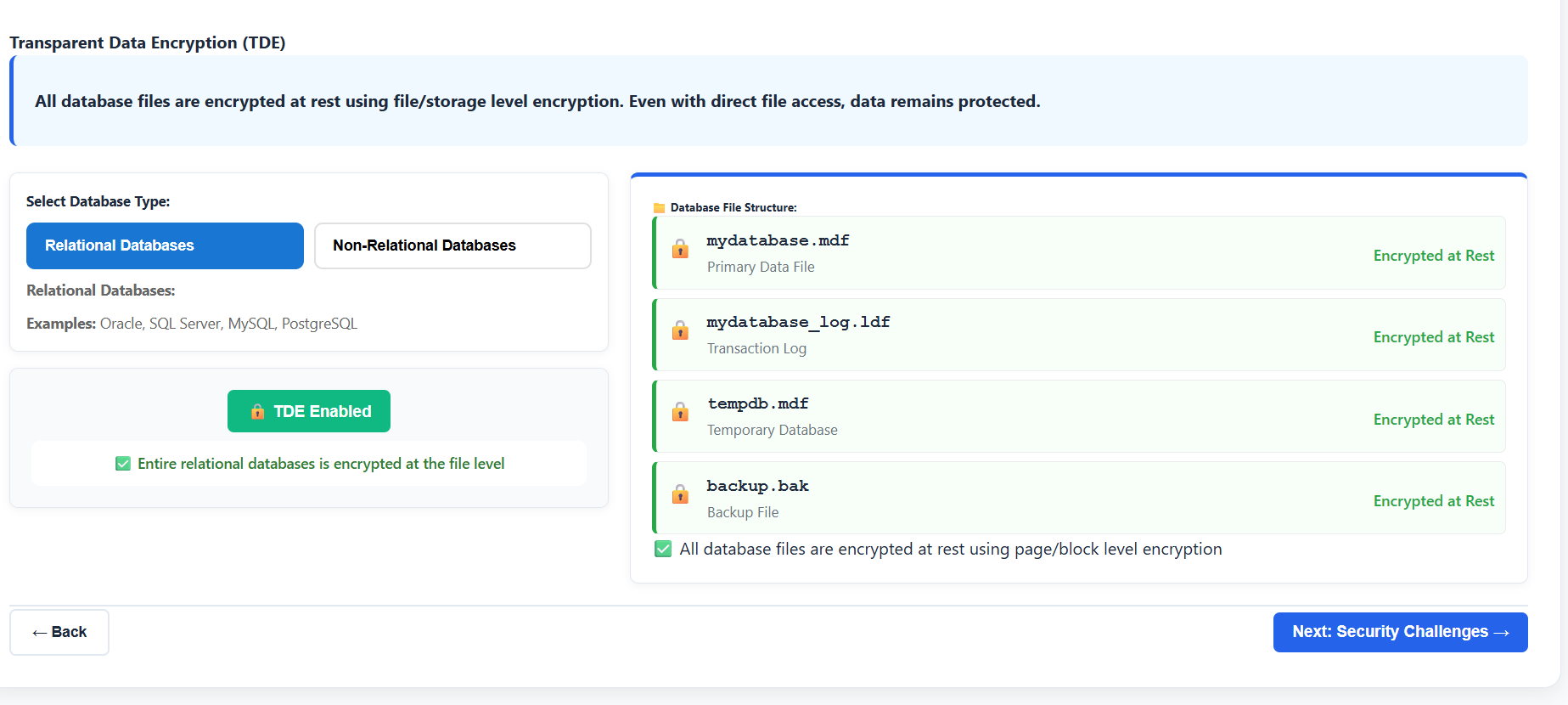
- Click "Enable TDE" to encrypt the entire database at the file level.
- Observe the "Database File Structure" panel to see how data files, log files, and backups are secured.
- Verify that the encryption status badges now reflect "TDE Encrypted".
- Click "Next: Security Challenges →" to move to the testing phase.
Step 5: Security Testing and Decryption
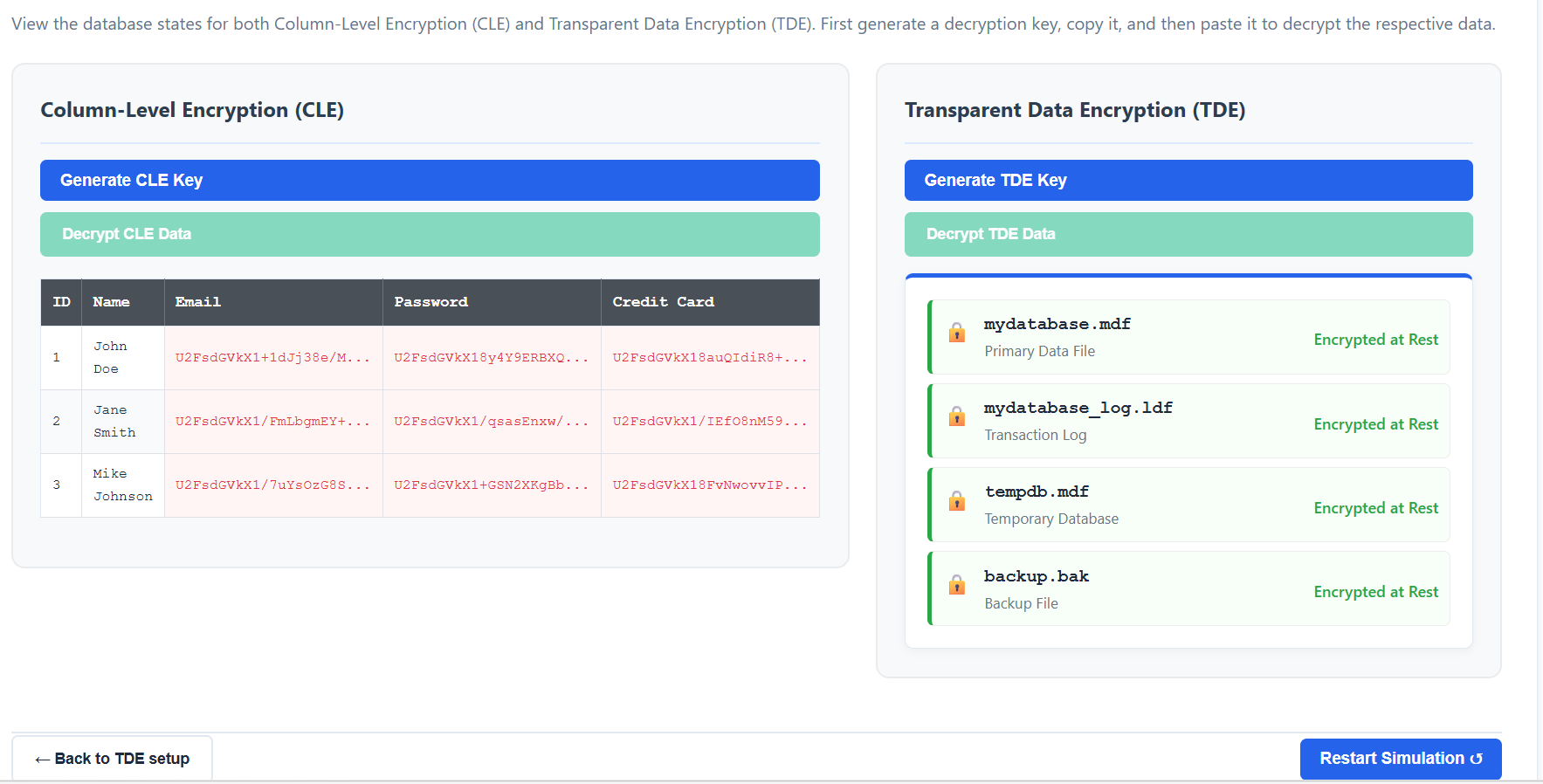
- This step demonstrates the effectiveness of encryption and the importance of key management.
- For Column-Level Encryption (CLE):
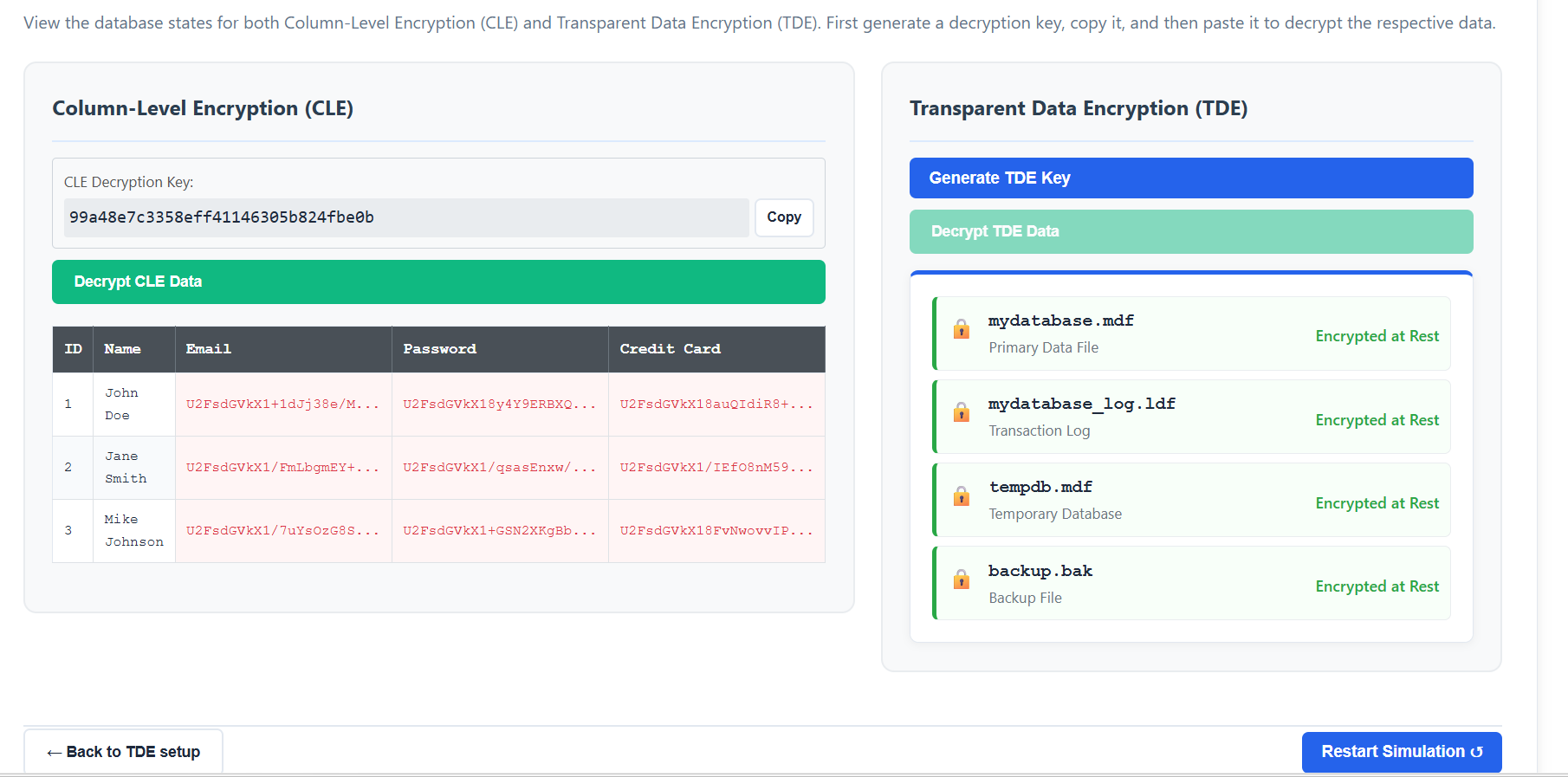
- Click "Generate CLE Key" to create a decryption key.
- Click "Copy" to copy the key to your clipboard.
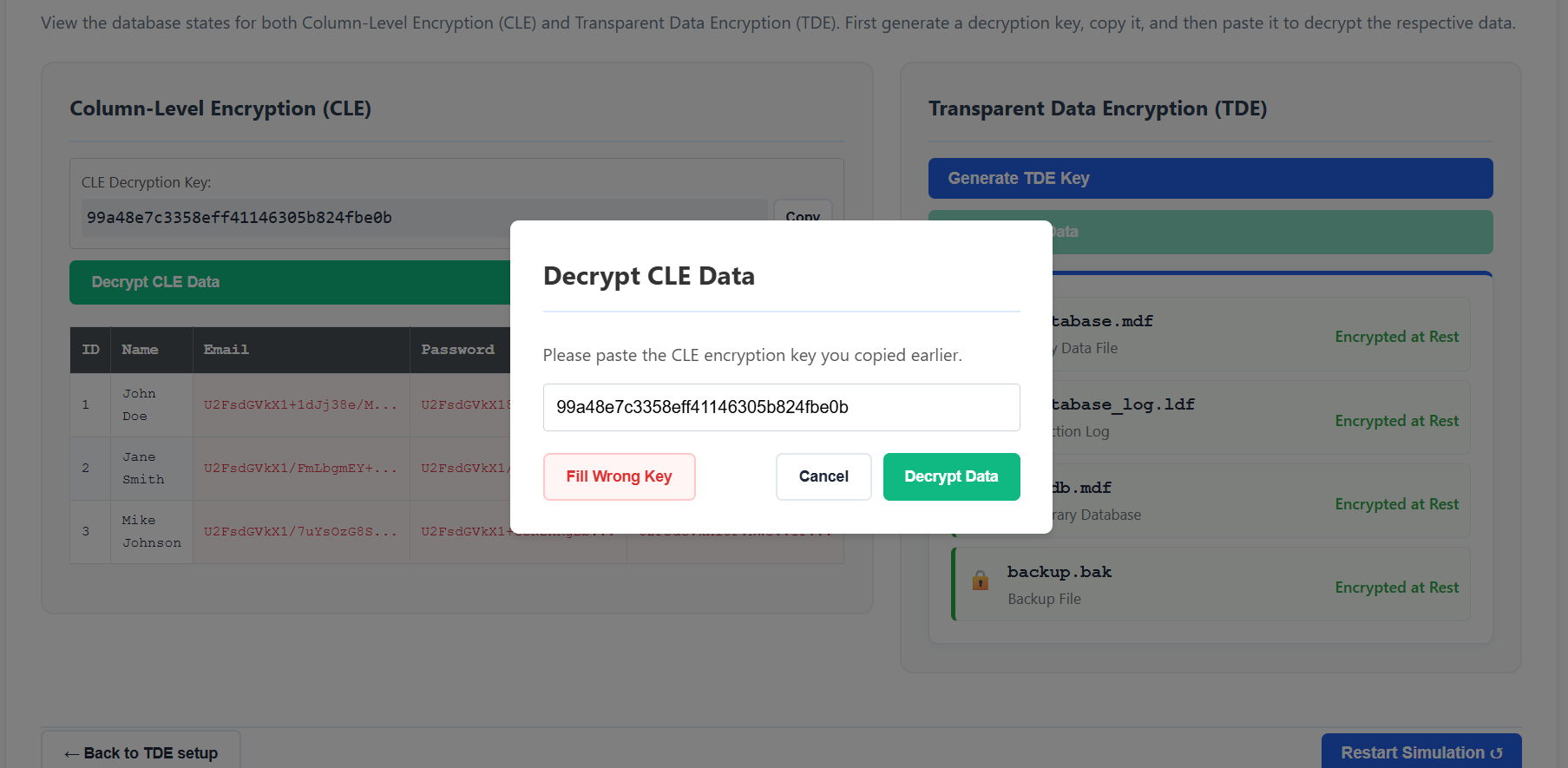
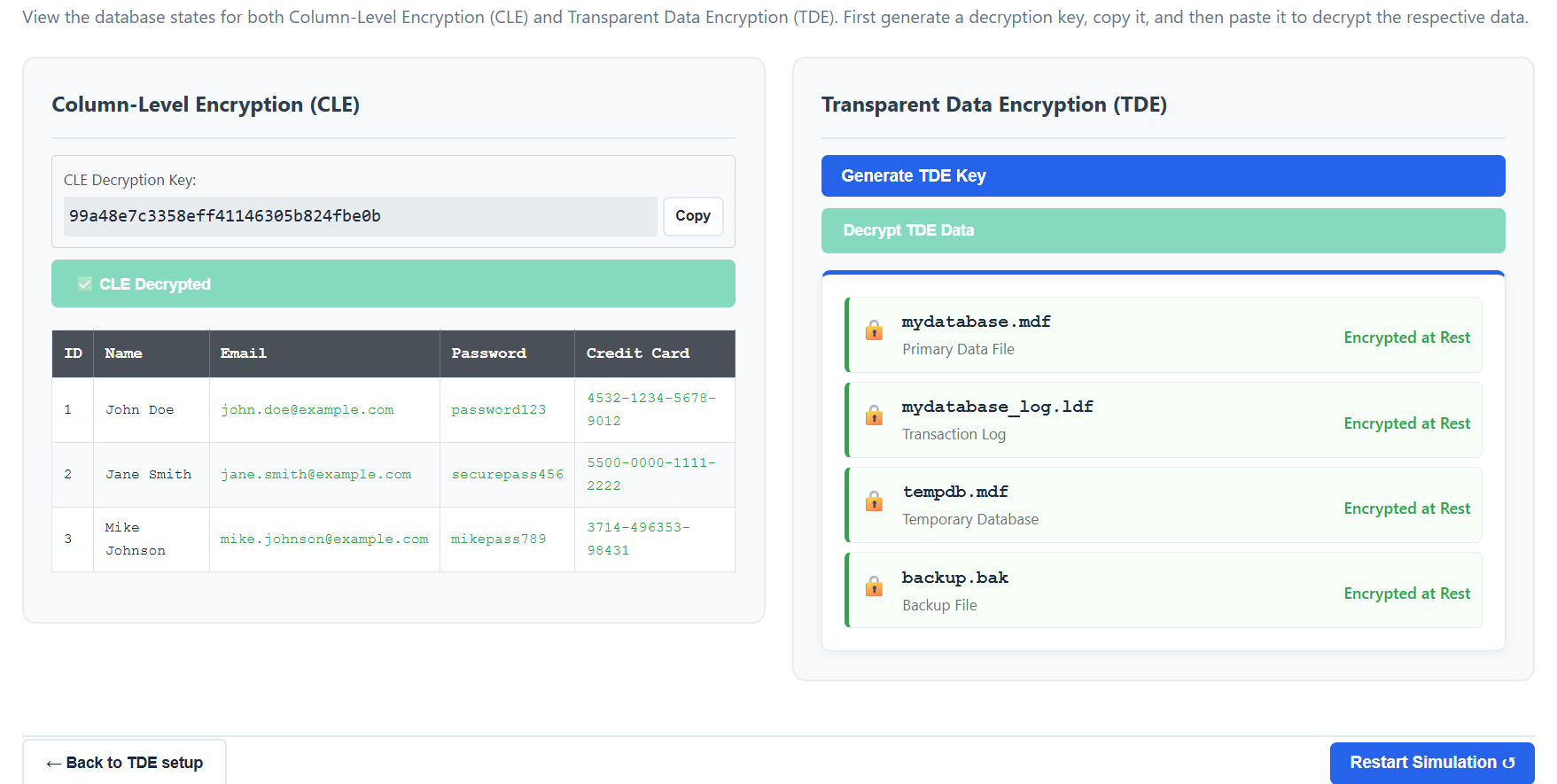
- Click "Decrypt CLE Data", paste the key in the popup, and observe the data returning to plaintext.
- For Transparent Data Encryption (TDE):
- Click "Generate TDE Key" and copy it.
- Click "Decrypt TDE Data", paste the key, and witness the database files becoming accessible again.
- Experiment with entering a "Wrong Key" to see how encryption effectively blocks unauthorized access.
- Once finished, you can click "Restart Simulation ↺" to try different encryption configurations.