Conversion of RE to NFA
Step 1: Choose Variables and Operations
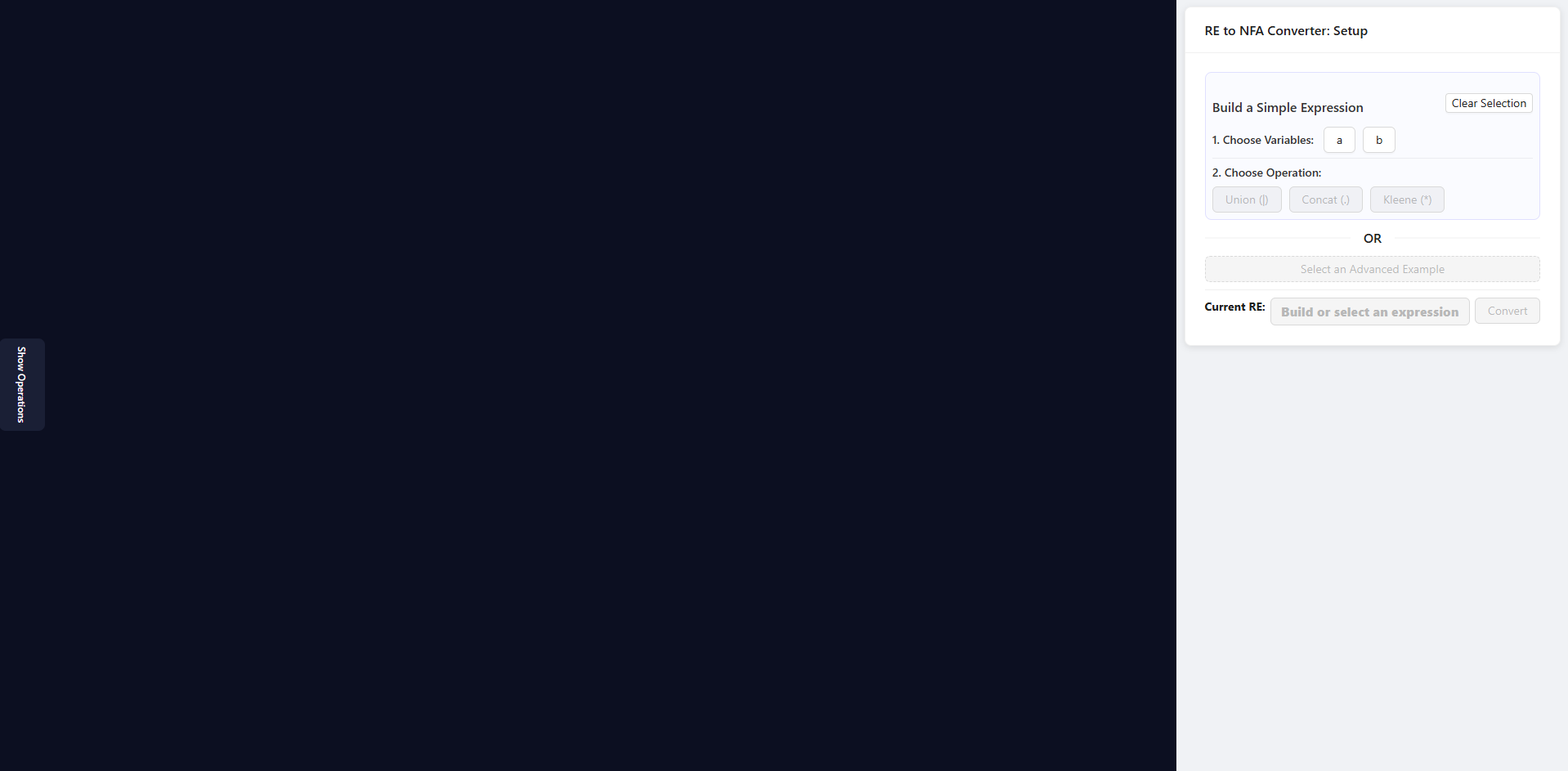
Open the Setup Panel on the right side of the interface.
- This panel is used to build a regular expression by selecting variables and operations.
Select Variables
- Under “1. Choose Variables”, click one or more variable buttons (e.g.,
a,b). - Selected variables will be highlighted.
- Example: Click
aandbto choose both.
- Under “1. Choose Variables”, click one or more variable buttons (e.g.,
Choose an Operation
- After selecting variables, the operation buttons under “2. Choose Operation” become active.
- Choose one operation to combine the variables:
- Union (|): OR of variables
- Concatenation (.): joining variables
- Kleene Star (*): zero or more repetitions
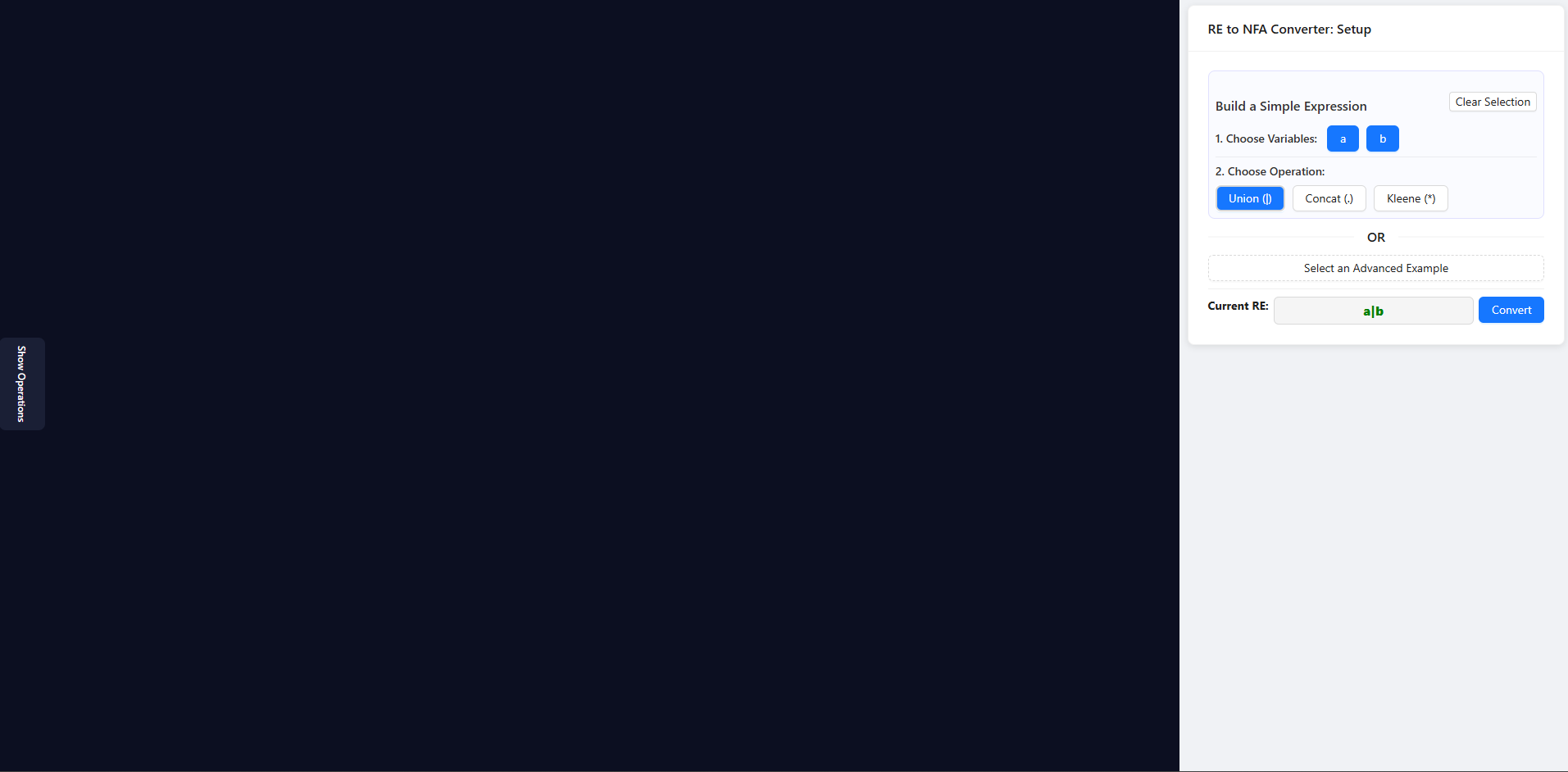
- Example: Click Union (|) to create
a|b.
View the Current Expression
- The Current RE field shows the constructed expression (e.g.,
a|b). - Click Convert to generate an NFA.
- The Current RE field shows the constructed expression (e.g.,
💡 Tip: Start with simple expressions (
a,b,a|b) before trying complex ones.
Step 2: Build the NFA in the Construction Panel
Open the Construction Panel below the setup area.
- This panel is used to create NFAs step by step.
Add States and Operations
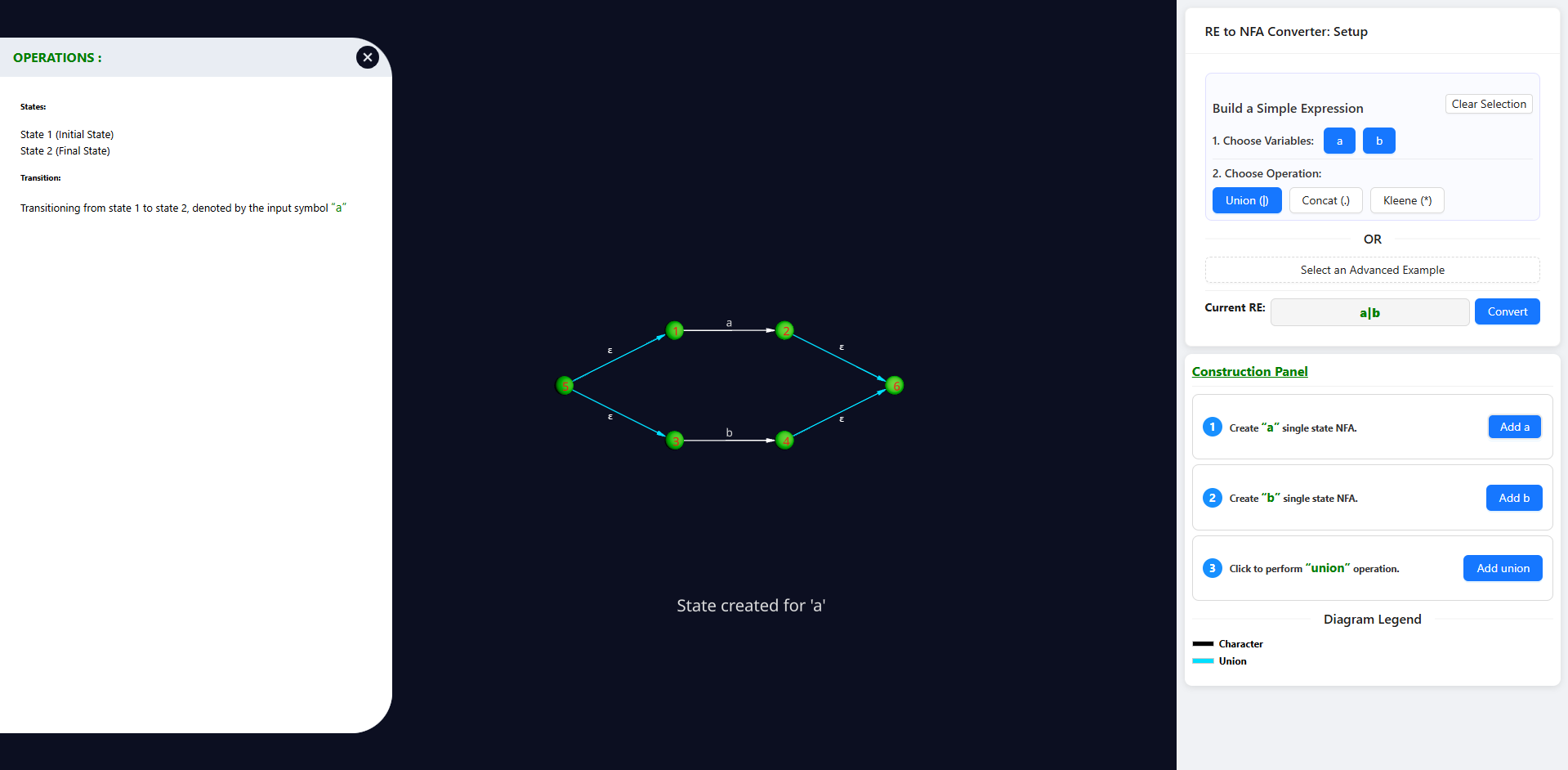
- Click Add a or Add b to create single-state NFAs for variables.
- Use operations (e.g., Add union) to combine them.
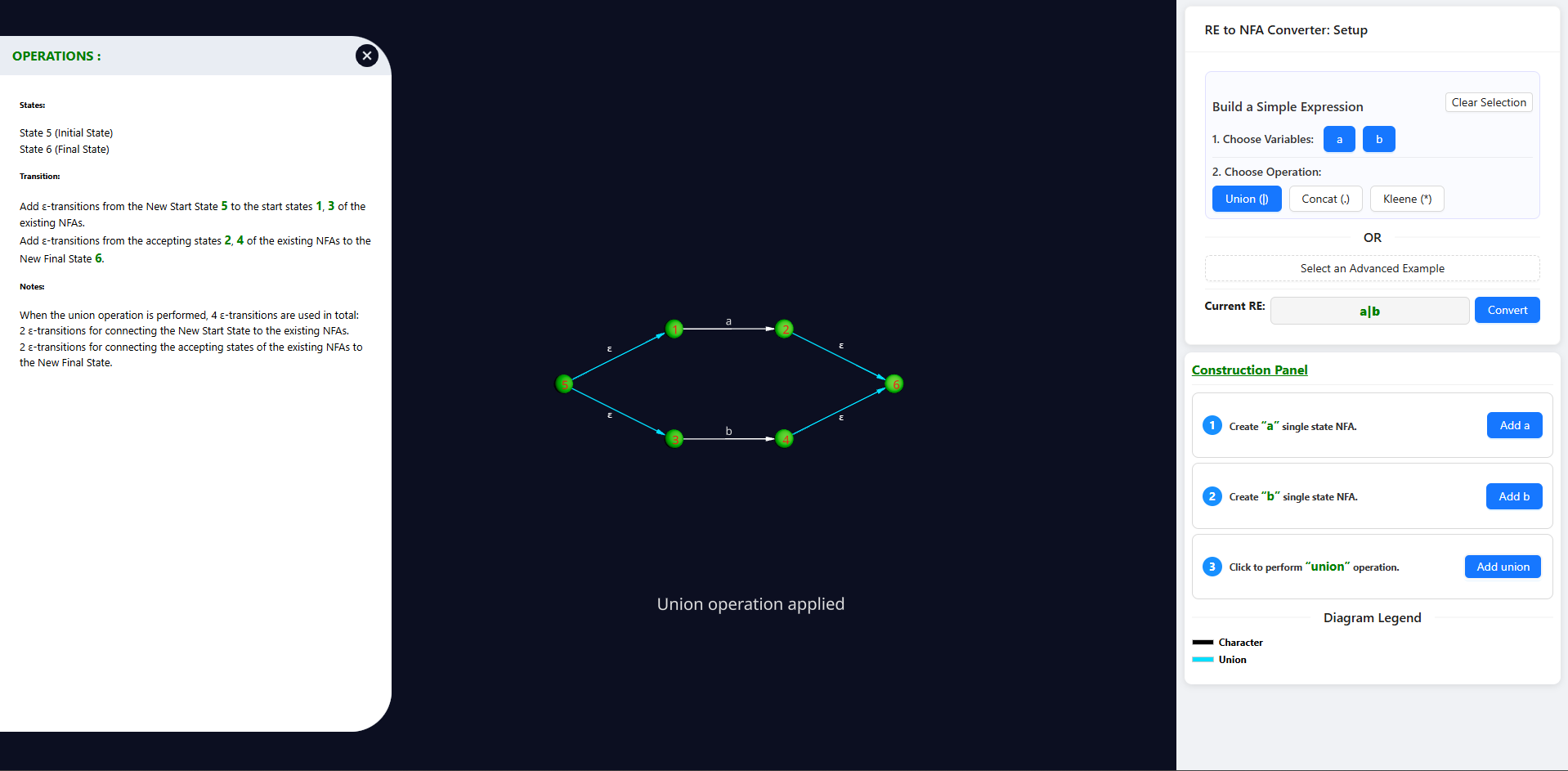
- The NFA diagram updates to show states, transitions, and ε-transitions.
- The left panel displays details of states and transitions.
Step 3: View Operation Details
Highlight States and Operations
- After performing an operation, select the states involved.
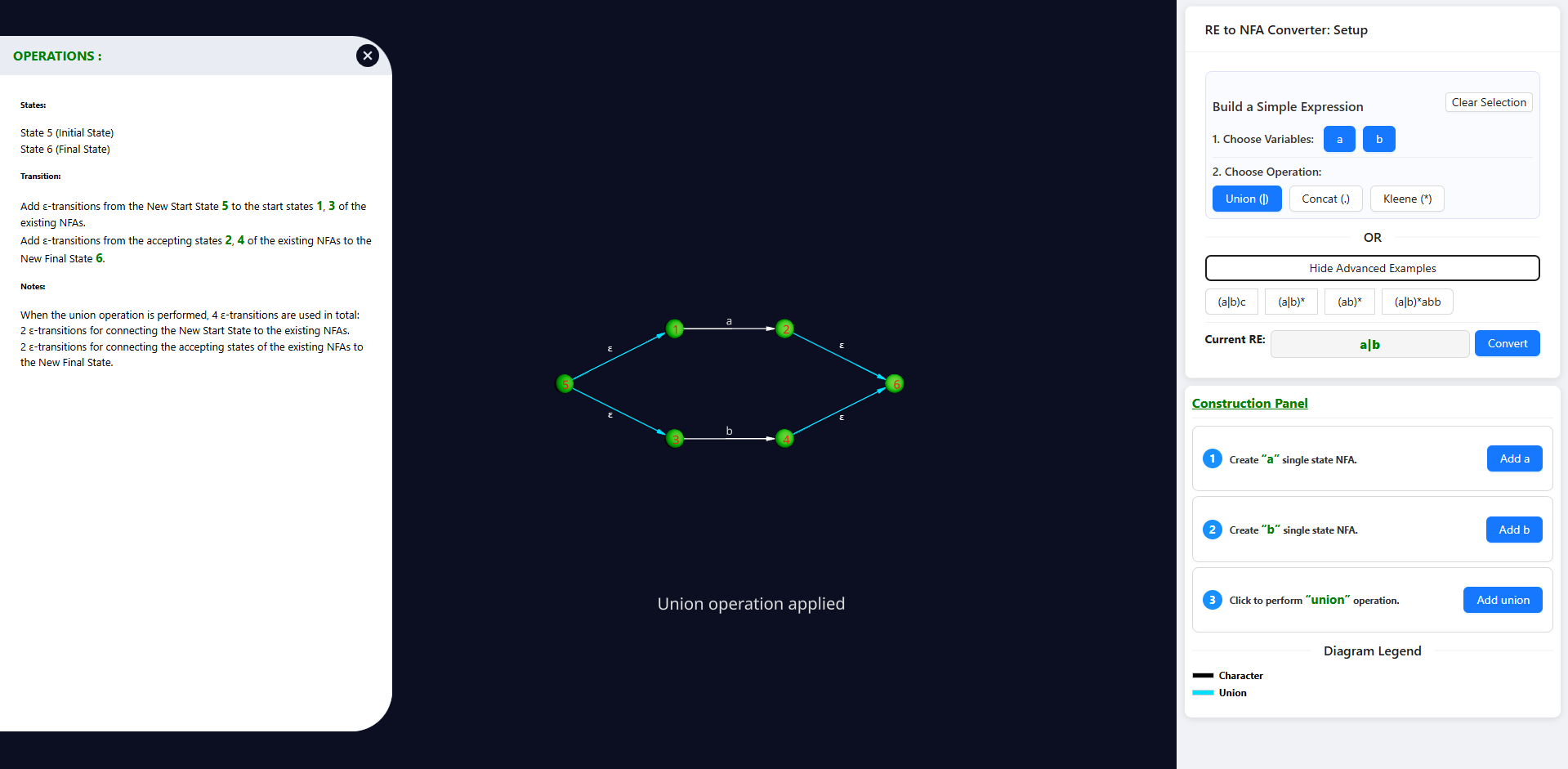
- The diagram highlights the applied operation (e.g., “Union operation applied”).
Check Operation Details
- The Operations panel on the left shows:
- Initial and final states
- Transitions (with ε-transitions)
- Notes explaining construction steps
- The Operations panel on the left shows:
Understand the Process
- Follow these details to learn Thompson’s construction step by step.
Step 4: Use Advanced Examples
Open Advanced Examples
- In the Setup panel, click Show Advanced Examples.
- Presets such as
(a|b)c,(a|b)*,(ab)*,(a|b)*abbappear.
Select an Example
- Click a preset. The Current RE field updates to the chosen expression.
Convert the Example
- Click Convert to generate its NFA.
- The diagram and Operations panel display construction details.
Explore or Reset
- Inspect states, transitions, and ε-links.
- Use Clear Selection to reset, or choose another example.
- Hide examples by clicking Hide Advanced Examples.
💡 Tip: Advanced Examples help visualize complete constructions. Compare them with your manual build from earlier steps.