
Clustering wines using K-Means
click the "Start Simulation" button to begin.
Step 1: Data Preprocessing
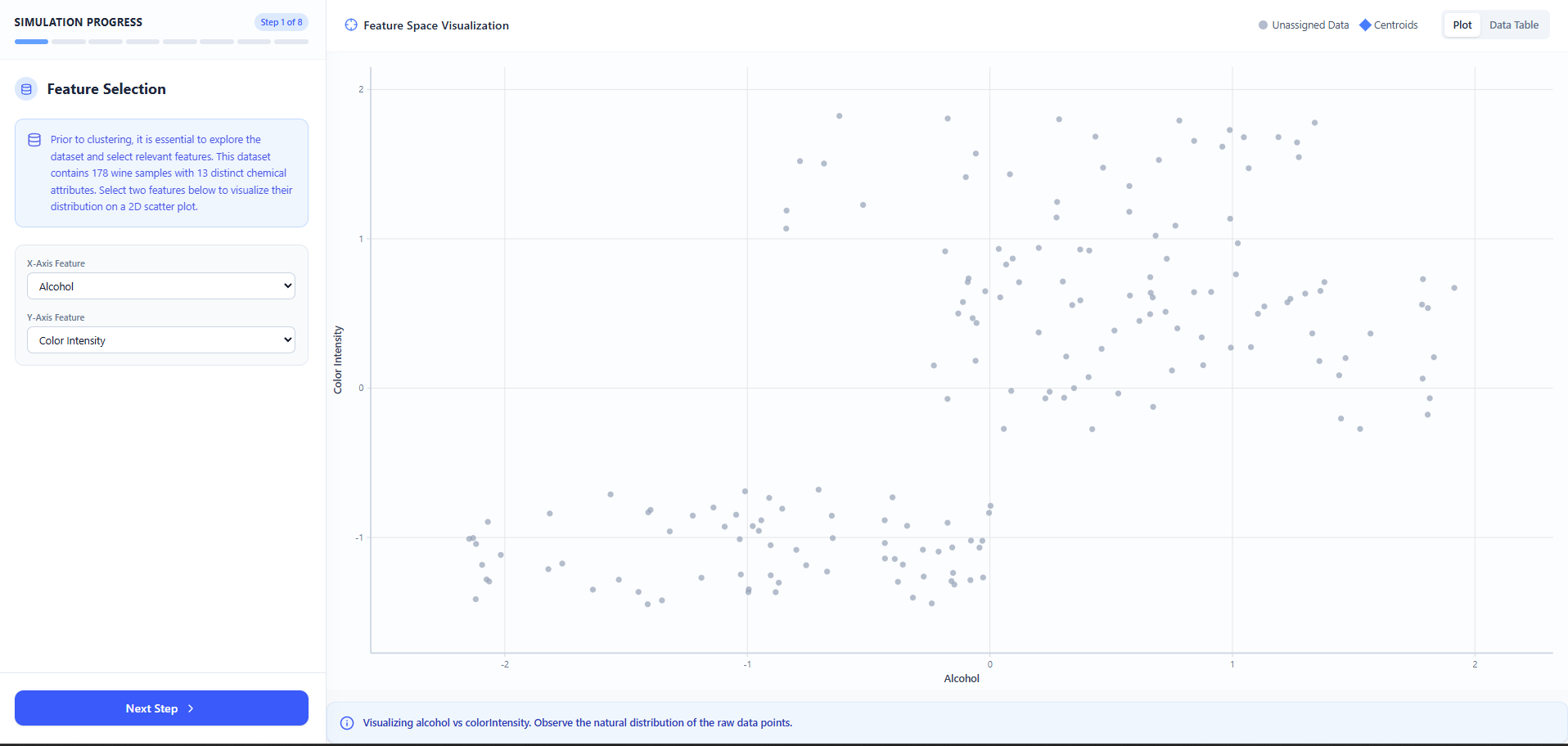
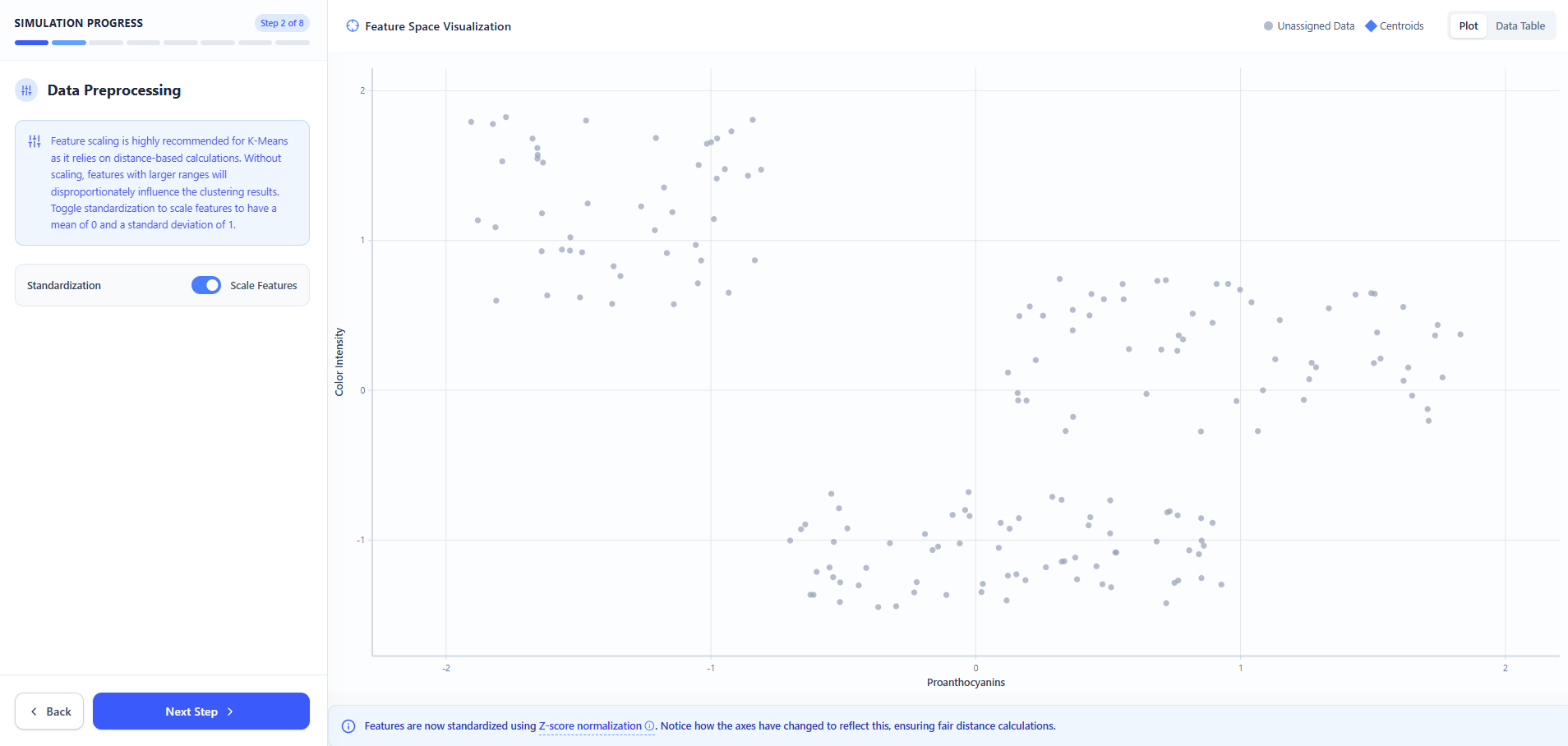
Toggle the "Standardize Features (Z-Score)" switch on or off.
Turning it on ensures that features with larger numbers don't unfairly dominate the clustering process.
Click "Next Step".
Step 2: Determine K (Number of Clusters)
Look at the "Elbow Method" plot on the right.
Try to find the "elbow" point where the line starts to flatten out.
Use the "Number of Clusters (K)" slider on the left to set your desired number of clusters.
Click "Next Step".
Step 3: Centroid Initialization
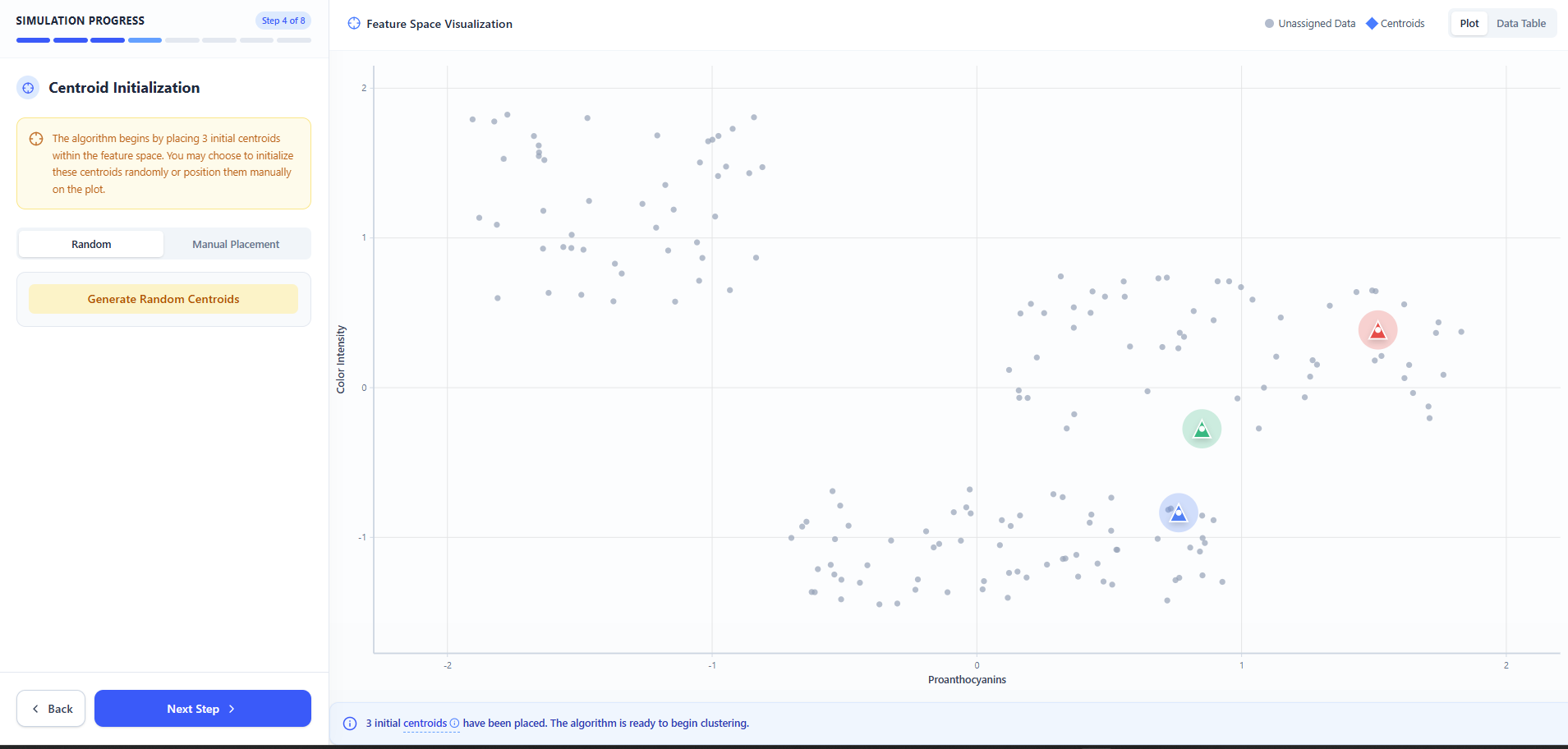
Choose your initialization method: Random or Manual.
If you chose Random:
Click the "Initialize Randomly" button to let the app place the starting points.
If you chose Manual:
Click directly on the scatter plot on the right to place your starting centroids yourself (you must click exactly K times).
Once the centroids are placed, click "Next Step".
Step 4: Point Assignment
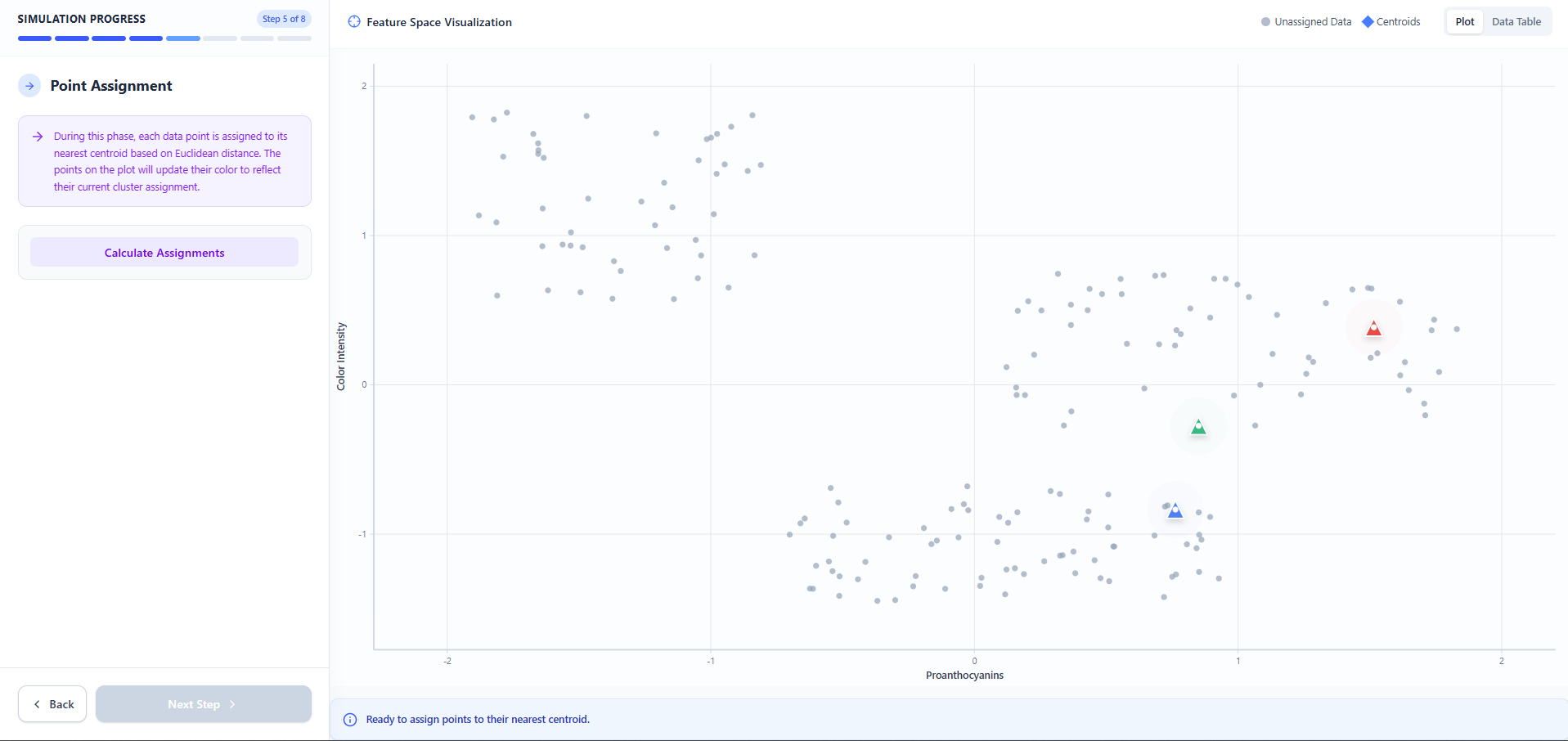
Click the "Calculate Assignments" button.
You will see the data points change color to match their closest centroid.
Click "Next Step".
Step 5: Centroid Update
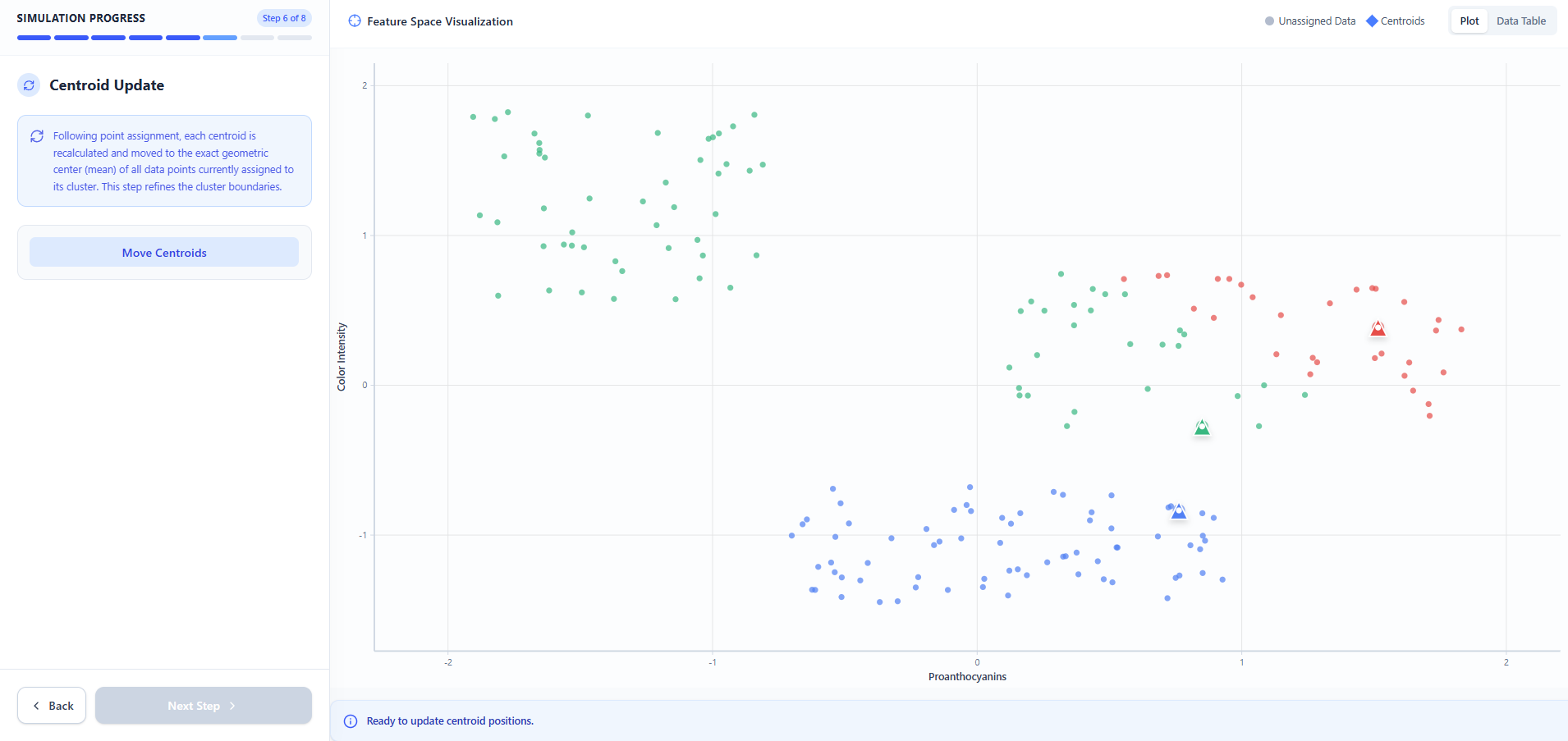
Click the "Move Centroids" button.
Watch the larger centroid markers move to the exact center of their newly assigned colored points.
Click "Next Step".
Step 6: Iterate
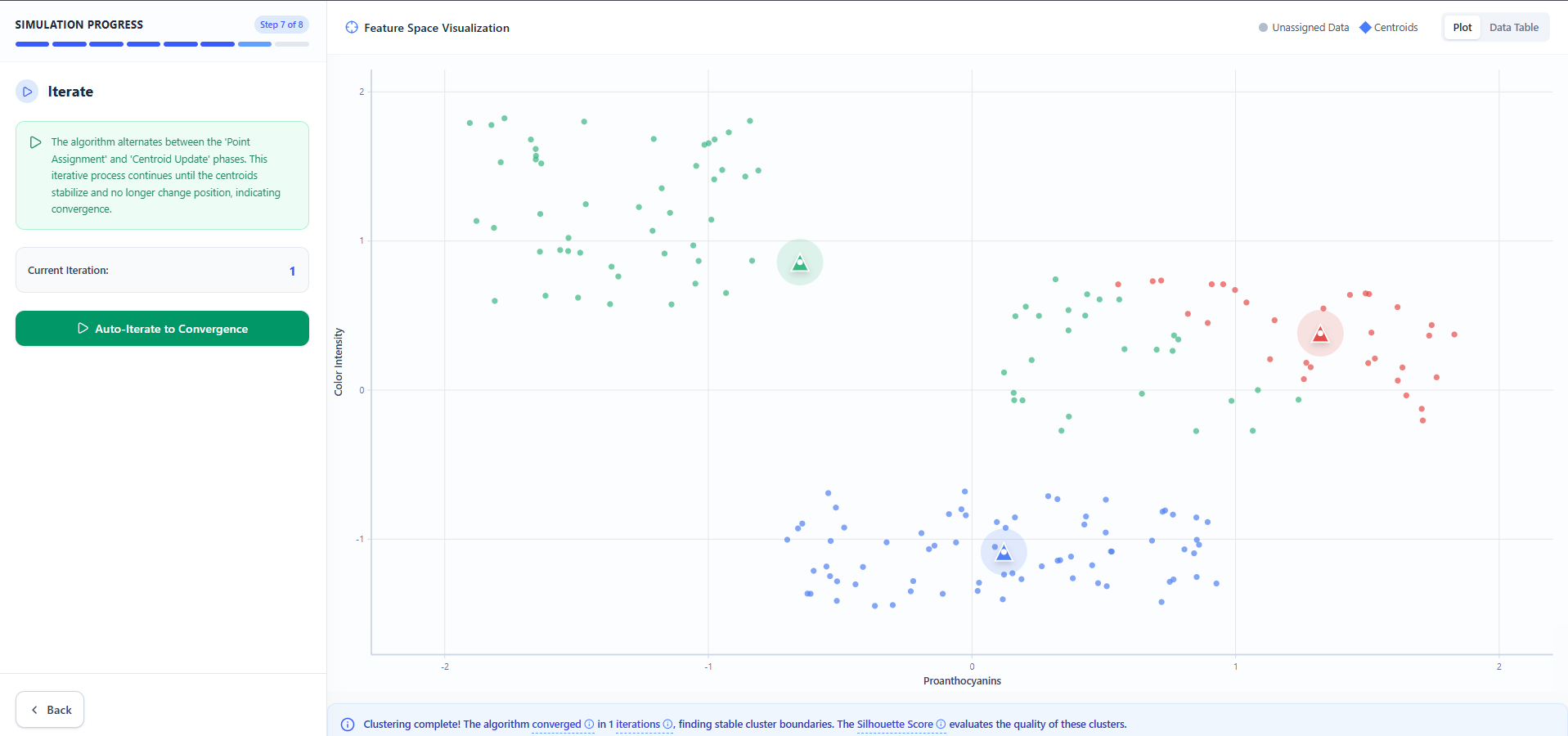
Click the "Auto-Iterate to Convergence" button.
The app will automatically repeat the assignment and update steps until the centroids stop moving.
Wait a few seconds for it to finish.
Step 7: Results
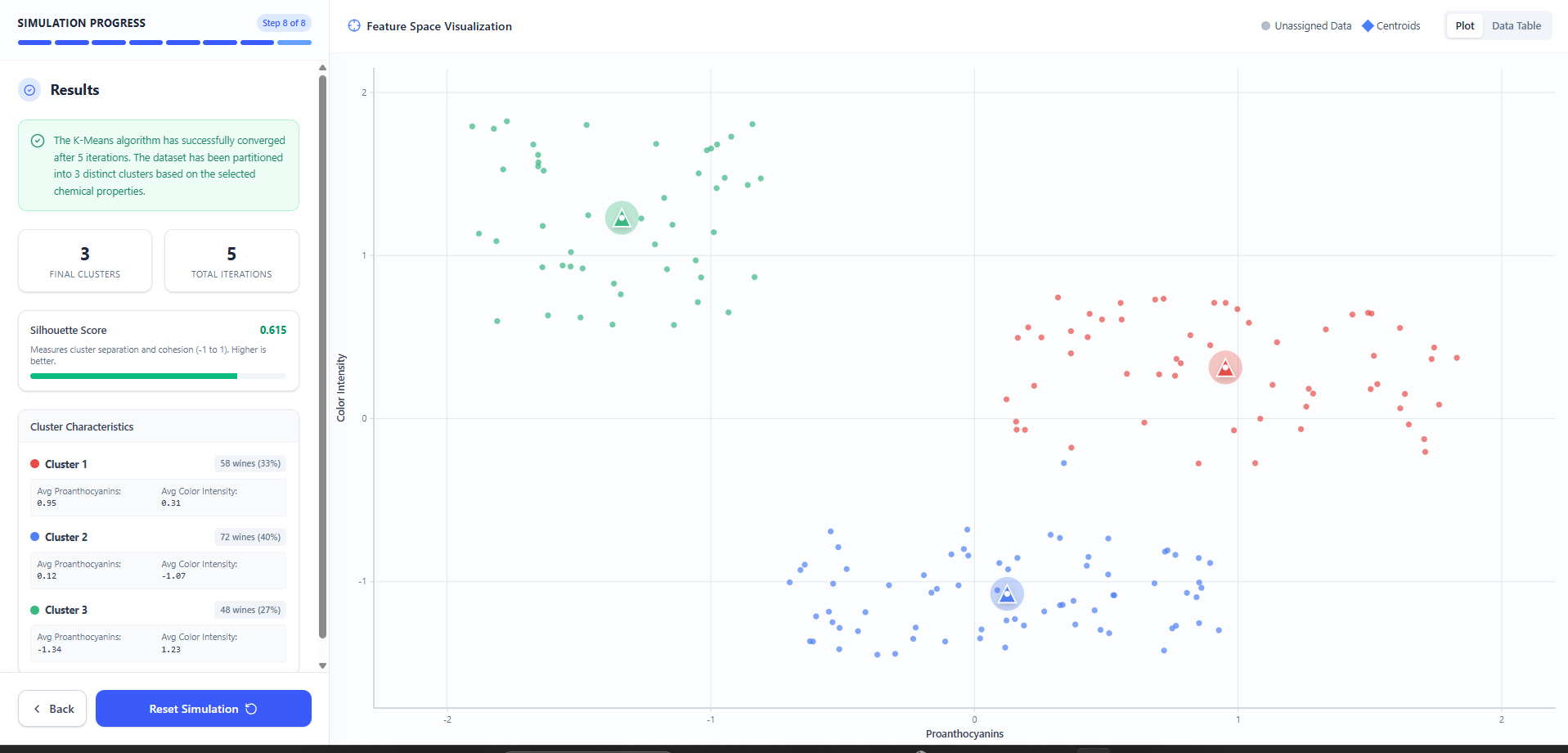
Review your final clusters, the total number of iterations, and the Silhouette Score (which grades how well-separated your clusters are).
To try again with different features or a different K, click "Reset Simulation" at the bottom to start over.